Integrations · Calendar and booking

AI agent calendar integration: your calendar
or the built-in one.

Kolio is an AI agent for businesses that checks free slots and books appointments by phone, web and email. By default it uses Kolio’s built-in Calendar — locations, staff, availability schedules, no integration. If you use an external booking system, connect it through an MCP server: the agent reads free slots there and books only when you allow writes.

Free for 7 days · built-in calendar in every plan · MCP connection in the Growth plan

Mon
Tue
Wed
Thu
Fri
8:009:0010:0011:0012:0013:0014:0015:0016:0017:00
Intro call · Gallagher
Consulting · Whitfield
Support · Vance
Implementation · Whitfield
Consulting · Norris
Intro call · King
Lina checks the calendar for Thursday afternoon …
Kolio · web chat: the agent checks a free slot and books it — in the built-in calendar or through your system's tool

Prepared by the Kolio team · updated

Question 1

Which calendar does the Kolio AI agent use: built-in or yours?

The Kolio AI agent books in Kolio's built-in calendar by default; it uses an external booking system only once you connect it through an MCP server — both run by the same conversation rules. The built-in Calendar has services with duration and staff, staff schedules, blocks and email reminders; your team sees appointments in a week or day view and moves them with the mouse. An external system makes sense when your team already keeps its calendar in another programme (the booking system of a salon, workshop or clinic) and does not want to duplicate it. How the agent runs the appointment conversation in either case is described on Appointments, viewings, meetings.
~40%
of appointments are booked outside of work hours, between 5 pm and 9 am — when nobody answers the phoneSource: Zocdoc
29%
fewer no-shows with an automated reminder alone (SMS or email), with no call from your teamSource: Hasvold & Wootton, J Telemed Telecare 2011
8
calendar tools the Kolio MCP server offers other systems — from free slots to cancellation

Kolio's built-in calendar

Works immediately, with no integration. In Settings → Services you define locations with opening hours, services (duration, staff, how many days ahead customers can book) and staff availability. The agent computes free slots as the intersection of the location's opening hours and the staff member's availability, enters the appointment, reschedules or cancels it at the customer's request, and the customer receives an email reminder at 7:30 on the day. Your team works in the same calendar: week and day views, dragging and resizing appointments with the mouse, manual entries even outside working hours.

  • locations, staff, availability and schedules
  • free slots, booking, rescheduling, cancellation — in the conversation
  • email reminder at 7:30 on the day of the appointment
  • no integration; included in every plan
Kolio's built-in calendar or an external booking system over MCP — what the AI agent can do in each
CapabilityKolio's built-in calendarExternal system over MCP
Free slotsintersection of the location's opening hours and free staff availabilityyour server's tool with the readOnlyHint annotation
Bookingthe agent enters it; overlap is checked right before writingonly with the full policy and a write tool on the allowlist
Rescheduling and cancellationyes, in the conversation by phone, chat or emailif the server offers the tool and it is enabled
Customer reminderemail at 7:30 on the day, in your company's time zone, oncesent by your system
View for your teamweek or day in Kolio, drag and resize with the mousein your system; in Kolio the conversation and the CRM contact
If the system does not respond—after 4 s (call) or 10 s (web) the agent says it cannot confirm the slot and creates a task
Setupa few minutes, no integrationMCP server address, credential, tool allowlist

Time limits and the policy apply equally to every external MCP server — details are on the MCP and API page.

Question 2

How does an external booking system connect to the AI agent over MCP?

An external booking system connects to the Kolio AI agent through an MCP server that exposes tools for free slots and booking; Kolio has no plug-ins for individual brands, so it works with any system that has an API. In Settings → MCP sources and integrations you enter the server address (https) and authentication — the credential is stored encrypted — Kolio reads the list of tools, and you enable the ones it may use. If your system's vendor has no MCP server, we set up a thin custom server in front of its API; that is part of Dedicated Kolio. The technical limits (time limits, circuit breaker, result sanitising, at most 15 tools) are described on MCP and API.

Free slots: a tool with readOnlyHint

During the conversation the agent calls your server's read tool (e.g. "free slots for a service and day") and offers the customer two or three slots. The default read_only policy lets through only tools with an explicit readOnlyHint annotation — without it the agent does not see the tool.

Booking: the full policy + allowlist

Writing to your system requires two decisions: switch the server's policy to full and explicitly enable the write tool (e.g. "create booking"). Tools the server adds later are not enabled automatically on refresh.

Rescheduling and cancellation

If your server offers reschedule and cancel tools and they are enabled, the agent uses them just as in the built-in calendar. Otherwise it tells the customer your team will arrange the appointment and creates a task in the CRM.

If the system does not respond

Reads get 4 s during a call and 10 s on the web, writes 8 s and 12 s. When exceeded, the agent does not retry — with a booking we cannot know whether the write happened — tells the customer it cannot confirm the slot right now, and hands over to your team. After three consecutive connection failures the server rests for 5 minutes.

Question 3

Does the Kolio Google Calendar AI agent sync appointments?

Kolio currently offers no direct synchronisation with Google Calendar: appointments the agent books are created in Kolio's built-in calendar, not in your team's Google Calendar. The Google connection in Kolio serves only sending email through Gmail. If Google Calendar is your team's source of truth, there are two honest routes: your team reads appointments from Kolio in the week view or through the REST API, or Google Calendar is connected as an external system through a custom MCP server that exposes free-slot and booking tools — scope and price are agreed in a consultation.

What applies today

There is no automatic transfer of appointments between Kolio and Google Calendar in either direction. Kolio's built-in calendar is the agent's only source of free slots until you connect an external system over MCP.

What you can do

Read appointments from Kolio through the REST API (GET /api/integrations/v1/bookings) or the Kolio MCP server and transfer them to your calendar; or connect Google Calendar as an external system through a custom MCP server (Dedicated Kolio).

Question 4

How is connecting a calendar to an AI agent visible to your team and other systems?

Appointments the Kolio AI agent books are visible to your team in the built-in calendar immediately and reachable by other systems through the REST Integrations API v1 and the Kolio MCP server. You issue an API key (kolio_sk_…) in Settings → MCP sources and integrations with the scopes bookings:read, bookings:write and services:read — a key never exceeds the permissions of the member who issued it. Over REST you read and create appointments (GET/POST /bookings, GET/PATCH/DELETE /bookings/{id}); over the MCP server your own AI agent does the same with the tools find_free_slots, create_event, update_event and cancel_event. Both entry points go through the same core as the agent and your team — opening hours, availability and overlaps are checked the same way. The webhooks booking.created and booking.cancelled fire for appointments created or cancelled over REST or MCP; appointments from conversations with the agent are read by other systems through GET /bookings.

GET /api/integrations/v1/bookings?from=2026-09-21&to=2026-09-27Authorization: Bearer kolio_sk_•••••••• ← 200 OK{ "data": [{ "id": "bk_7f3a…", "serviceId": "sv_…", "contactId": "ct_…","slotStart": "2026-09-22T09:00:00.000Z", "slotEnd": "2026-09-22T09:30:00.000Z","status": "confirmed", "source": "phone" },{ "id": "bk_9c21…", … "source": "api" }] }
REST Integrations API v1 · GET /bookings?from&to · a range without an offset is read as time in Europe/Ljubljana

Kolio MCP server tools for the calendar

Eight tools your own AI agent or another system uses with a key carrying the bookings:read or bookings:write scope. Write tools pass through the same availability check as the agent.

  • list_events
  • get_event
  • list_services
  • find_free_slots
  • create_event
  • update_event
  • cancel_event
  • delete_event
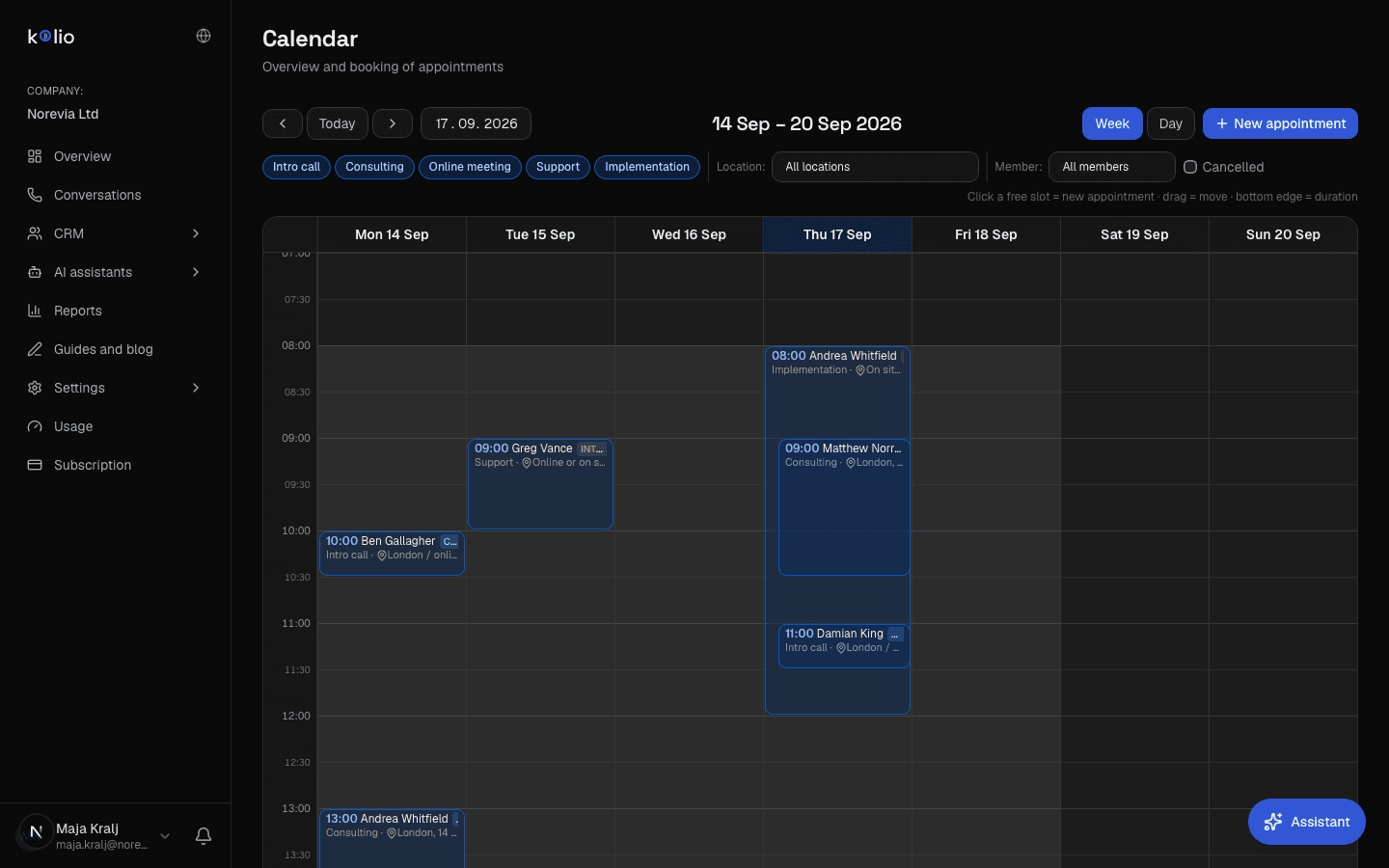
Kolio Calendar: week view of appointments at the demo company Norevia with several staff members — appointments booked by the AI agent and the team's manual entries in the same view
Kolio · Calendar (week): appointments from conversations with the agent and the team's manual entries in one view; the same data is available over REST and MCP

AI agent calendar integration is the connection through which an AI agent reads free slots from a company's calendar during a conversation and writes a booking into it. With Kolio the default source is Kolio's built-in calendar; an external booking system connects through an MCP server, where reading is the default and writing requires explicit permission.

The readOnlyHint annotation by which Kolio separates read tools from write tools is defined by the Model Context Protocol specification (Tools).

Three steps

How do you set up a calendar for AI booking in three steps?

For the built-in calendar steps 1 and 3 are enough; step 2 is needed only when you keep appointments in an external system.

  1. 01

    Define services, staff and schedules

    In Settings → Services enter services with duration and staff and the staff schedules; set how many days ahead customers can book. The agent computes free slots from these settings.

  2. 02

    Connect an external booking system if needed

    In Settings → MCP sources and integrations add your system's MCP server (https, credential), enable the read tool for free slots and — if you want booking — the full policy with a write tool.

  3. 03

    Test in the simulator

    In the simulator ask for a free slot and book it; check the appointment in the Calendar or in your system. Only then switch on the phone, website or Email agent.

FAQ

Frequently asked questions about connecting a calendar to the Kolio AI agent

Can our team keep working in its own calendar if the Kolio AI agent books appointments?

Your team can keep working in its own booking system if you connect it to Kolio through an MCP server: the Kolio AI agent reads free slots from your system and books there when you allow writes. Without an integration the agent books in Kolio's built-in calendar, which the team sees in a week or day view.

Does the Kolio AI agent sync appointments with Google Calendar?

The Kolio AI agent currently does not sync appointments with Google Calendar in either direction; the Google connection in Kolio serves only sending email through Gmail. Another system can read appointments from Kolio through the REST API or the Kolio MCP server, and Google Calendar can be connected as an external system through a custom MCP server.

How are appointment reminders timed?

Kolio's built-in calendar sends the customer an email reminder at 7:30 on the day of the appointment in the company's time zone, once per appointment; there is no SMS reminder. With an external booking system, reminders are sent by your system under its own rules.

Can the AI agent create or cancel an appointment in our booking system by itself?

The Kolio AI agent creates or cancels an appointment in an external booking system only if you switch that MCP server's policy to full and explicitly add the write tool to the list of enabled tools; the default read_only policy lets through only read tools with the readOnlyHint annotation, with which the agent merely reads free slots.

What happens if our booking system does not respond during a call?

Kolio stops waiting after 4 seconds during a call or 10 seconds on the web (8 or 12 seconds for a booking), tells the customer it cannot confirm the slot right now, does not retry the call and creates a task for your team; after three consecutive connection failures the server rests for 5 minutes and the agent works with the built-in calendar.

How does another system read the appointments the Kolio AI agent booked?

Another system reads appointments from Kolio through the REST Integrations API v1 (GET /api/integrations/v1/bookings with an API key carrying the bookings:read scope) or through the Kolio MCP server (the tools list_events and find_free_slots). The booking.created webhook fires for appointments created over REST or MCP; appointments from conversations with the agent are picked up by other systems with a GET /bookings call.

Let the agent book in the calendar you already use — or in ours.

The built-in calendar works immediately in the 7-day trial; you set up an external system over MCP in the Growth plan or we agree it in a consultation.

No credit card · external systems read-only by default · data in the EU

Related pages