Team · Calendar

An appointment calendar the agent fills in itself.
Your team watches — and moves things when needed.

Kolio has a built-in appointment calendar run by an AI agent: it checks free slots against the location's opening hours, staff availability and existing appointments, then books, moves or cancels. Your team sees appointments by week or day, filters by location and member, drags them around and sees the contact in the CRM on each one. The Appointments, viewings, meetings page describes the customer's experience; integrations cover external calendars.

7 days free · no credit card · the calendar works right away, no integrations needed

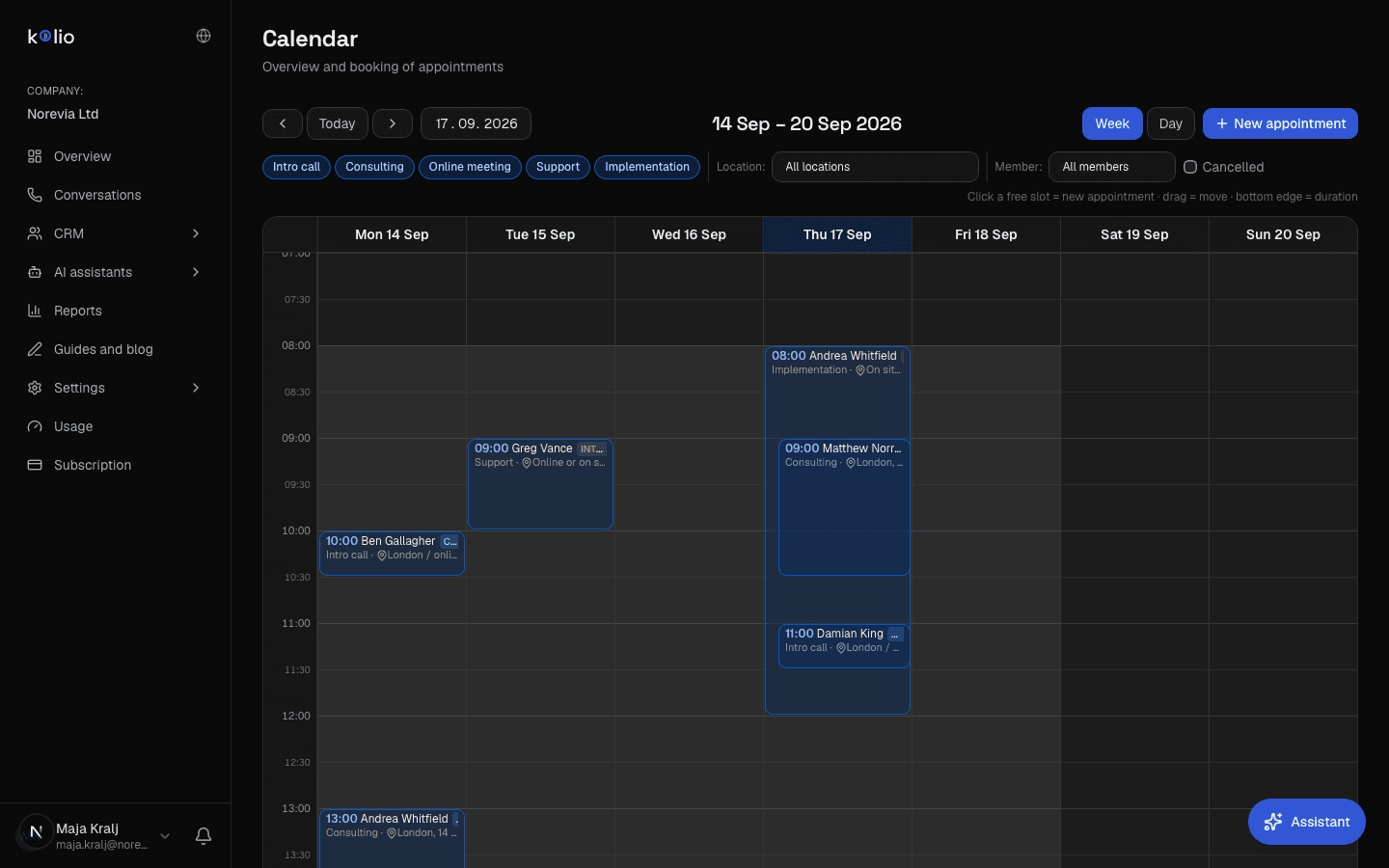
Kolio Calendar — weekly appointment calendar of the demo company Norevia Ltd with appointments by day, filters by service (Intro call, Consulting, Online meeting, Support, Implementation), location and assignee, and a New appointment button
Kolio Calendar · demo company Norevia Ltd · week view with filters by service, location and assignee

By the Kolio team · updated

~40%
of appointments are booked outside working hours, between 5 pm and 9 am — the agent enters them, the team sees them in the morningSource: Zocdoc
34%
fewer no-shows with an appointment reminder — weighted average across 29 studiesSource: Hasvold & Wootton, J Telemed Telecare 2011
29%
fewer no-shows with an automated reminder alone, no call from the team — Kolio sends it itselfSource: Hasvold & Wootton, J Telemed Telecare 2011
Who does what

What does the agent do by itself in the appointment calendar?

The appointment calendar in Kolio is managed by the AI agent: by phone, on the web and by email it checks the free slot, books it, reschedules or cancels at the customer's request, and on the day of the appointment Kolio emails a reminder automatically. The appointment is the only transaction the agent closes on its own — quotes, prices and orders come from your sales team, which receives them as a task in the CRM. Your team edits its own appointments manually in the same calendar, even outside the published schedule. Why it matters: according to Zocdoc, nearly 40% of appointments are booked between 5 pm and 9 am, when nobody is at the phone — by morning they are already in the calendar.
Who does what in the Kolio Calendar: the action, what the AI agent does by itself and what your team does
ActionKolio AI agentYour team
Checks a free slotitself, during the conversation: the location's opening hours ∩ an available, free staff membersees availability in the grid; clicks a free spot
Book an appointmentby itself, after checking; the appointment gets a contact and a source (phone, web, email)by clicking a free spot — even outside the schedule, with confirmation
Rescheduleby itself, at the customer's request, to the next free slotdrags the appointment to another time (5-minute snapping)
Change the durationno — the service sets the durationdrags the bottom edge of the appointment
Cancelby itself, at the customer's request; the appointment gets the status "cancelled"Cancel button (stays struck through) or Delete (permanent)
Confirmation by emailif the customer wants one and gives an email address"Send the customer a confirmation email" checkbox on a new appointment
Appointment reminderKolio automatically: on the day of the appointment at 7:30, by email, oncenothing — sent for every appointment with a contact that has an email
Quote, price, orderno — handed to your sales team as a task in the CRMyes: the quote comes from your sales team
Services

How does the appointment scheduling calendar describe services, locations and staff?

The Kolio appointment calendar separates three things. A service carries a duration (30 minutes by default), the price the agent may quote, a name and description in Slovenian and English, and the staff who perform it; it also has a booking horizon (30 days ahead by default) and a minimum lead time (60 minutes by default). A location (salon, branch, online) has an address, weekly opening hours and closures (holidays, leave). A staff member has availability by day — which location they are at, and which services they perform there. How many appointments of the same service run at once is not a setting: as many as there are free staff at that hour. Below are the services of the demo company Norevia, as your team sees them in settings.
Services of the demo company Norevia Ltd in the Kolio Calendar: duration, price, staff and their locations
ServiceDurationPriceStaffStaff locations
Intro call (free)30 min€0Maya Kingsley, Thomas ReedLondon / online
Consulting90 min€120Maya Kingsley, Thomas Reed, Nina ClarkeLondon, 14 Bishopsgate Court
Online meeting45 min€60Maya Kingsley, Thomas Reed, James PorterOnline (Google Meet)
Support60 min€80Nina Clarke, James PorterOnline or on site
Implementation (priced by quote)240 minby quoteNina ClarkeOn site

A service with no staff ticked has no free slots — the agent and online booking do not offer it until you assign at least one member. The Implementation appointment is agreed by a consultant after the intro call — your sales team issues the quote, not the agent.

Kolio Settings → Booking → Locations: the demo company Norevia's locations with address, weekly opening hours by day and the Closures and holidays section
Free slot

How does the AI manage the calendar without guessing: the free slot is an intersection

The AI runs the Kolio calendar by one rule: a free slot is the intersection of the location's opening hours (minus closures and holidays) and the availability of at least one staff member who performs that service at that location and is not busy with another appointment. The agent only offers slots from this intersection, within the booking horizon and after the minimum lead time. If there is no intersection, it offers nothing and never guesses. With several locations it first asks the customer where they want to come. Slots follow the service duration (a 30-minute service: 9:00, 9:30, 10:00 …), and availability is re-checked right before saving so two callers never get the same slot.

Location opening hours

Each location (salon, branch, online) has weekly opening hours by day (for example Mon–Fri 9–12 and 13–17) and closures: holidays and leave for one or all locations. Outside them the agent offers nothing; your team can still add an appointment manually — the calendar warns that it is outside opening hours and asks whether to save anyway.

Location opening hours
Staff availability
Staff member still free
∩
Free slots the agent may offer
8:0011:0014:0017:00
availableunavailable (closed, taken, absent)
Staff availability

Each team member has their own availability by day — which location they are at, until when it repeats and which services they perform there (all of theirs by default). A slot exists only when at least one staff member for that service is available at that location in that window.

A free staff member, not a capacity

How many appointments of the same service may run at once is set by the number of staff who are free at that time — there is no separate setting. A staff member busy with another appointment (even a different service or a free-form event) does not count for new ones. The check is the same on every path — bot, online booking, team and integrations.

Closures, absences, exceptions

A location has closures by day or period (public holiday, collective leave) — for one or all locations. A member has absences (leave, training) and one-off exceptions (a partial absence from 10:00 to 11:30 or an extra window outside their usual availability).

The team's view

How does your team move, resize and filter appointments in the weekly calendar?

The Kolio weekly calendar shows locations, staff and availability in one grid: columns are days, grey bands are the selected location's opening hours and the selected member's availability, and each appointment carries the time, contact name, service and location. Filter by location and by member (All · Me · individual); the full list of appointments with filters by period, status, source and assignee is in CRM → Appointments. The calendar remembers the switch to day view; on narrow screens the day view opens. Whatever the agent does by phone or on the web appears in the grid without reloading — the calendar refreshes itself every minute, except while you are dragging or editing an appointment.

Mon
Tue
Wed
Thu
Fri
8:009:0010:0011:0012:0013:0014:0015:0016:0017:00
Intro call · Gallagher
Consulting · Whitfield
Support · Vance
Implementation · Whitfield
Consulting · Norris
Intro call · King
Lina checks the calendar for Thursday afternoon …
Kolio · web chat with the demo company Norevia Ltd · Lina checks Thursday and books

Week and day

The week view is the default; the day view shows one day at full width. The colour of an appointment shows its status: confirmed, pending, completed, no-show, cancelled (struck through). A badge shows the source — phone, web or API.

Drag and resize

Drag an appointment to another time or day, drag its bottom edge for a different duration — both snap to 5 minutes and ask for confirmation before saving. Cancelled appointments cannot be moved.

Filters: service, location, assignee

Pills by service and location, an "All / Mine" switch for your own appointments, and a toggle to show cancelled ones. Clicking a free spot opens a new appointment with the chosen service, a contact from the CRM, an assignee and a note.

A free slot is, in Kolio, the intersection of a location's opening hours and the availability of at least one staff member who performs the service at that location and is free at that time — minus closures, holidays and absences for that day. If there is no intersection, the agent offers nothing and never guesses.

Contact and conversation

Why is every appointment in a team appointment calendar tied to a contact and a conversation?

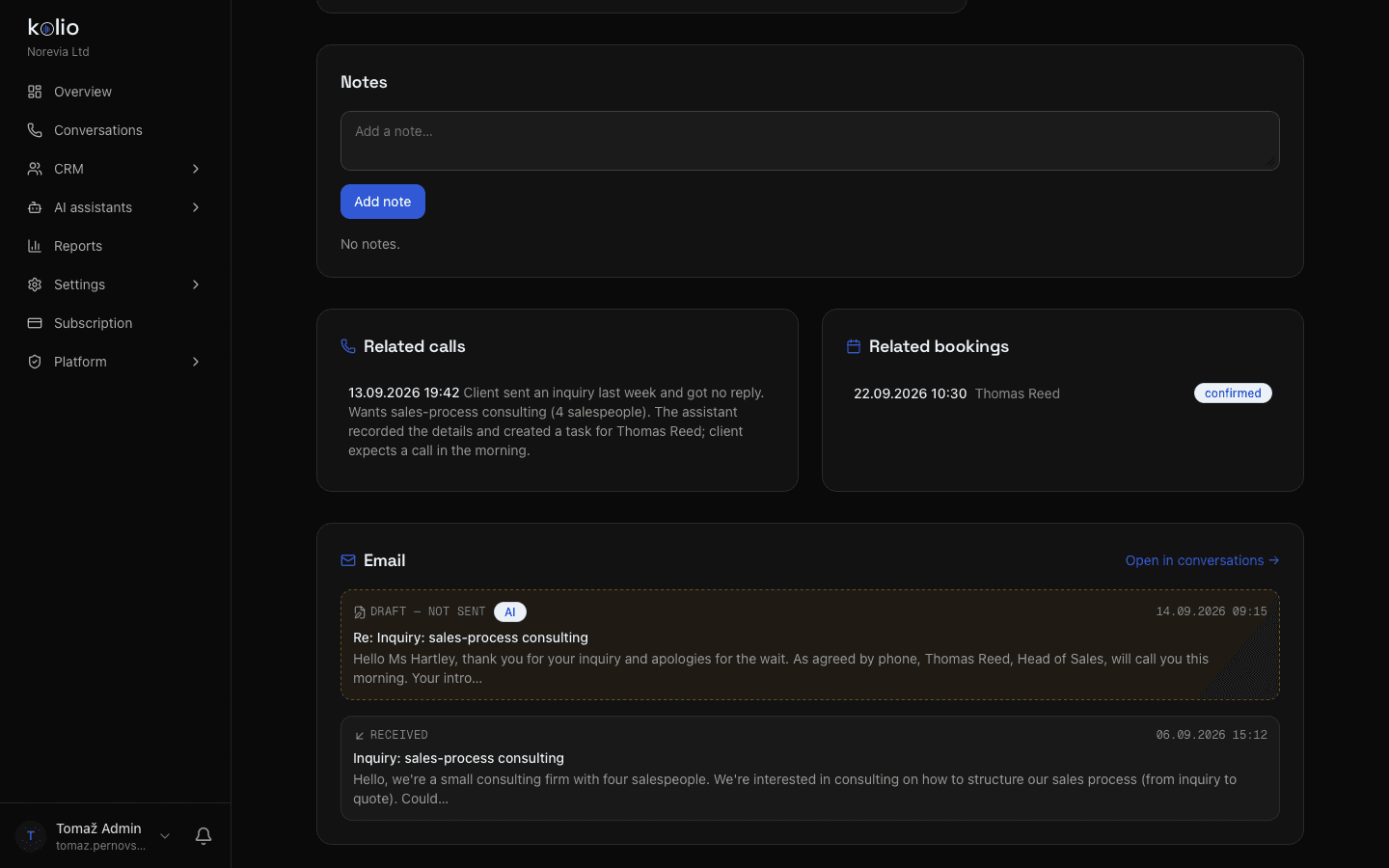
The team appointment calendar in Kolio ties every appointment to a contact in the CRM: who booked, through which channel and what was agreed. An appointment made by the agent carries its source (phone, web or email) and a reference to the conversation it came from — so the contact card shows linked appointments, linked calls with a summary and email together, and in the Conversations overview the thread with the booking carries an "appointment" badge. An appointment your team enters gets its contact by searching by name or phone. Before the meeting, everyone on the team knows who they are talking to and about what — without asking around the office.
Kolio CRM — contact card in the team appointment calendar: linked appointments with assignee and status, linked calls with a conversation summary, and email with an AI reply draft
Kolio CRM: a contact with linked appointments, calls and email — the team sees the whole conversation before the appointment
External calendar

What if you already keep appointments in an external calendar or booking system?

The Kolio Calendar is not a requirement: if you already keep appointments elsewhere, connect that system through the calendar and booking integration — the agent reads free slots from your system and books there too, once you explicitly allow writing. It works the other way as well: an external system can read and write the Kolio Calendar through the same tools your team uses, with an API key that never exceeds the rights of the member who issued it.

More about the calendar and booking integration →

Kolio reads and writes your system

Through an MCP or API integration the agent checks free slots in your calendar or booking system. Writing is off by default — you switch it on per tool.

Your system reads and writes Kolio

MCP server and REST API v1: list locations, appointments and services, find free slots by location, create, move, cancel. Every write goes through the same opening-hours and availability check as the agent.

Change notifications

Signed booking.created and booking.cancelled webhooks tell your system about appointments made through the integration. The records show which integration acted.

Setup

How do you set up services, schedules and staff in three steps?

You set up the appointment calendar in Kolio once; it applies to every channel and to your team. Step-by-step instructions are in the Help centre.
  1. 01

    Enter locations and services

    In Settings → Booking add locations with an address, opening hours and closures, then services: name and description (SL and EN), duration, the price the agent may quote, booking horizon and minimum lead time. For each service tick who performs it. Switch off any service you do not want offered.

  2. 02

    Set staff availability

    For each team member enter weekly availability: day, hours, location and — if they do not perform everything — only some services; repeating with or without an end date, absences separately. The calendar shows opening hours and availability as a lighter band in the grid.

FAQ

Frequently asked questions about the appointment calendar

Can the team enter appointments manually, even outside the schedule?

Your team adds an appointment in the Kolio Calendar by clicking a free spot or with the New appointment button, even outside the location's opening hours or a member's availability — the calendar warns and asks whether to save anyway. Opening hours and availability limit the AI agent, online booking and integrations, not your team; the double-booking check for a staff member applies to everyone.

How do I set up three chairs or two hairdressers?

There is no separate capacity in Kolio: as many appointments run at once as there are free staff. Two hairdressers who perform haircuts and are available at 10:00 mean two appointments at 10:00; a third chair without a hairdresser does not count. If the salon has several locations, each hairdresser's availability says where and which services they perform.

Can each staff member see only their own appointments?

A team member uses the "Me" filter in the Kolio Calendar to show only the appointments they own, and the member filter to see any colleague's; the grid shading follows the selected member's availability. All members with calendar and appointment permissions otherwise see the whole company calendar; Kolio does not yet have a separate "own appointments only" permission.

What if we already use Google Calendar or another booking system?

Kolio connects to your existing calendar or booking system through MCP or an API: the AI agent reads free slots from your system and books there once you allow writing. Kolio does not currently offer direct Google Calendar sync; the connection goes through the standard tools described on the calendar integration page.

When does the customer get the reminder?

Kolio emails the appointment reminder on the day of the appointment at 7:30 in the morning, in the company's time zone, once per appointment, for every appointment with a contact that has an email address. An appointment created after 7:30 for the same day gets its reminder on the next run, before the appointment starts.

What happens if two people call for the same slot at once?

The Kolio AI agent re-checks availability right before saving, not only when offering: if another caller took the same slot a second earlier, the first save fails and the agent immediately offers the customer the next free slot. The same staff member is never double-booked.

A calendar the agent fills in — start for free.

Enter your services and schedule, assign staff and try booking in the simulator. No credit card.

7 days free · cancel any time

Read next