Online appointment scheduling 24/7
The booking page is always open; free slots are read from the internal calendar at the moment of choice, so the customer cannot pick a time that has been taken in the meantime.
Kolio online booking is a public page for online appointment scheduling: the customer picks a service, day and time from the free slots of your calendar, enters their details and gets an email confirmation. The appointment lands in the Kolio booking calendar with the source “Online booking”, and a reminder goes out the day before. Embed it as a link, a frame or a script.
7 days free · no credit card · Slovenian and English
Prepared by the Kolio team · updated
The booking page is always open; free slots are read from the internal calendar at the moment of choice, so the customer cannot pick a time that has been taken in the meantime.
A customer on your site at 10 pm books the appointment in a minute — no waiting for the morning, no call and no email your team would have to copy over.
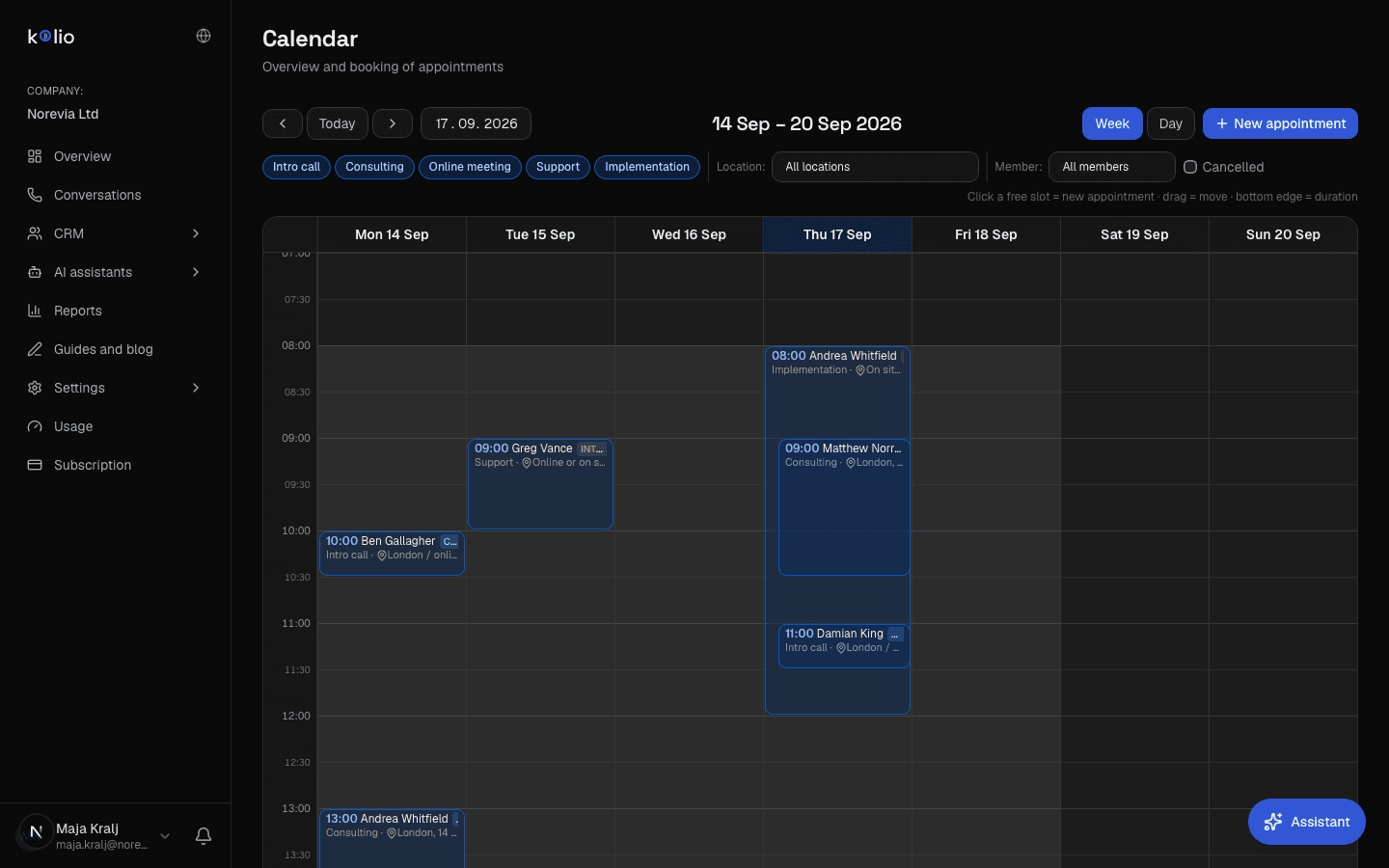
Appointments from online booking, from calls, from the website chat and those your team enters are in the same booking calendar with the source marked — no double bookings.
?lang=), service names and descriptions have an English translation in settings, and the look follows your logo and colour from settings; the hosted page on kolio.si has no Kolio menu — only a note that booking is powered by Kolio.If you have several locations (a salon in Ljubljana, a salon in Maribor, online), the customer first picks a location with its address; free slots are then computed from that location's opening hours and the availability of members there. With one location the step is skipped and the address appears in the summary and confirmation.
The customer chooses among the services you marked as publicly bookable — with duration and, if you wish, price and description. Internal services are not shown on the page.
The calendar shows only free slots: it respects the location's opening hours, team member availability and appointments already booked from every source.
Name, email, phone (required or not — your choice) and a note; the customer consents to data processing. The contact and the consent are recorded in the CRM.
The appointment is confirmed immediately or marked “unconfirmed” until your team confirms it. The customer receives an email with the details and a link to reschedule or cancel.
kolio-booking.js script, which adds a floating button with a modal or embeds the form directly into the page. Kolio shows all three codes in Settings → Online booking.| Method | Code | When to choose it | Language |
|---|---|---|---|
| Link to the hosted page | kolio.si/en/book/<key> (Slovenian /narocanje/<key>) | A “Book now” button in the menu, in an email signature, on a Google Business profile or on social media — no change to the site's code. | EN or SL by path (?lang=) |
| Frame (iframe) | /embed/narocanje/<key> | The form as part of your “Booking” subpage; the visitor stays on your domain. | ?lang=en or ?lang=sl |
| kolio-booking.js script | data-mode="button" or data-mode="inline" | A floating button that opens a modal on every page (button, label via data-label), or the form where the tag stands (inline, default). | data-lang="en" or "sl" (otherwise the page language) |
The public key is intentionally visible in the page source and gives no access to your data — it only allows booking a free slot.
<!-- Kolio online booking: floating button with a modal --><script src="https://kolio.si/kolio-booking.js" data-key="YOUR_KEY" data-mode="button" data-lang="en" data-label="Book now" defer></script><!-- or: the form embedded where the tag stands --><script src="https://kolio.si/kolio-booking.js" data-key="YOUR_KEY" data-mode="inline" defer></script>The fastest route: share one link anywhere. The page is hosted on kolio.si with your logo, colour and text.
The form lives on your subpage; the visitor stays on your domain, the data goes straight to Kolio.
button adds a button in the corner of the page, inline embeds the form where the tag stands.booking_confirm template — with your name, the service, the time and a link to reschedule or cancel. Edit the template text in Settings → Templates.The day before the appointment Kolio sends a reminder from the same template as for appointments booked by the AI agent on the phone. A customer who cannot make it reschedules or cancels on their own.
In the settings you choose whether the appointment is confirmed at once or stays “unconfirmed” until your team confirms it. Unconfirmed appointments are shown in amber in the calendar.
Appointment booking is a public form, so Kolio checks every booking before writing it: a hidden field for bots, a limit on attempts per IP address and per email address, and a re-check that the chosen slot is still free at the moment of saving. Your calendar therefore gets no fake or duplicate appointments.
The form has a field the visitor never sees but bots fill in — such a booking is silently rejected.
Too many attempts from the same address or with the same email in a short time are paused by Kolio; a real customer never notices.
The slot is booked only after Kolio re-checks opening hours, availability and existing appointments at save time — two visitors cannot get the same hour.
Online booking is a public web page or embedded form on which the customer picks a service, day and time among a company's free slots and confirms the appointment with their details; the appointment is written to the company's calendar and the customer receives a confirmation and a reminder. In Kolio it is one of the routes to the same booking calendar as the phone and the website chat.
You switch online booking on in Settings → Online booking; you need at least one service and availability set up — the same as for appointments booked by the agent. The feature is included in the Growth and Custom plans (and in the trial).
In Settings → Booking check locations with opening hours, services (duration, staff) and team availability, and mark the services as publicly bookable; add an English name to the services if you will offer the page in English too.
In Settings → Online booking switch the public page on, enter the headline and intro (SL and EN), choose whether the phone is required and whether appointments are confirmed automatically or by your team.
In Settings → Templates review the booking_confirm template and the reminder: company name, directions, signature. Kolio sends them from your address when email is set up.
Copy the link, frame or script, add it to your site and make a test booking. Check the appointment in the calendar and the confirmation in your inbox, then cancel the test appointment.
Kolio online booking is a public appointment scheduling page that the account owner switches on in Settings → Online booking. The customer picks a service, day and time among the free slots of the internal calendar, enters name, email and phone and receives an email confirmation; the appointment is written to the Kolio calendar with the source “Online booking”.
Kolio shows only free slots from the internal calendar on the booking page, respecting the location's opening hours and team member availability, and re-checks the slot at save time. If someone else took the slot in the meantime, the customer is notified and picks another time.
Kolio offers three ways: a link to the hosted page kolio.si/en/book/<key>, an iframe at /embed/narocanje/<key> and the kolio-booking.js script, which with data-mode="button" adds a floating button with a modal and with data-mode="inline" embeds the form into the page. All three codes are in Settings → Online booking and work without a plugin on any system.
Right after booking, Kolio sends the customer a confirmation from the booking_confirm template with the appointment details and a link to reschedule or cancel, and a reminder the day before the appointment. Both messages go out from the account's email address when email is set up in Kolio.
In the online booking settings the account owner chooses between automatic confirmation and team confirmation. With team confirmation the appointment waits in the calendar with the status “unconfirmed” (amber), and the customer receives the confirmation once your team confirms it.
The Kolio online booking page works in Slovenian and English: the English version is at /en/book/<key> or with the ?lang=en parameter. English names and descriptions of services and the English page headline are entered in the settings; without a translation the Slovenian text is shown.
Kolio protects the public form with a hidden field (honeypot) that bots fill in and people do not, with a limit on attempts per IP address and per email address, and with a re-check of the free slot at save time. The page's public key gives no access to the account's data.
Kolio online booking is available in the Growth and Custom plans, and you can try it in full during the 7-day free trial. The Starter plan does not include the public form; after upgrading to Growth you enable it in Settings → Online booking at no extra cost.
Services, schedule, switch on, embed. Appointments from the web, calls and chat in one booking calendar, confirmations and reminders automatically.
7 days free · cancel anytime