What does a conversation with the agent create?
From every conversation Kolio always stores a conversation record with a transcript; a contact and a task are created by the agent only when the content of the conversation or your instructions call for it — nothing is created automatically “just in case”.
| Channel | Conversation record | AI summary | Contact | Task |
|---|---|---|---|---|
| Phone call (agent) | transcript by role (customer/agent), caller number, duration; stored only if the customer actually spoke | yes: service, interest, recommended action, collected data, language | via the ustvari_kontakt tool or when booking an appointment | via the ustvari_nalogo tool |
| Website chat | transcript and the visitor’s attachments | no | as for a call | as for a call |
| Email (inbound) | message in CRM email, attached to the contact with the same address | AI reply draft depending on the mode (see Email) | never automatically — the Create contact button | via the ustvari_nalogo tool during an AI reply |
| Softphone call (team) | call direction, duration, transcript (if enabled) | short summary | manual | manual |
- A contact is not created automatically from the caller’s number. The agent stores it with the
ustvari_kontakttool (first name, last name, phone, email, company, note — all optional) or when booking an appointment withustvari_termin. It first looks for an existing contact by phone number, then by email, and does not create duplicates. - A task is created with the
ustvari_nalogotool when the agent cannot finish the matter itself: a callback, a complaint, a special request, a failed booking. The task gets a title and description, status New, source “agent” and the authorbotin its timeline; it gets an assignee only if a default task recipient is chosen in Settings → Agent, otherwise it stays unassigned. - What the agent may do is defined in AI agents → Agent instructions — e.g. “on every inquiry save the contact and create a task for sales” (see Agent instructions).
- Conversations from the Call simulator and Web simulator are not stored; contacts, tasks and appointments the agent creates in them are real, however.
How do contacts work?
A contact in Kolio is a customer with a name, phone and email to which conversations, appointments, emails and notes are attached. Working with contacts requires the kontakti permission (CRM → Contacts).
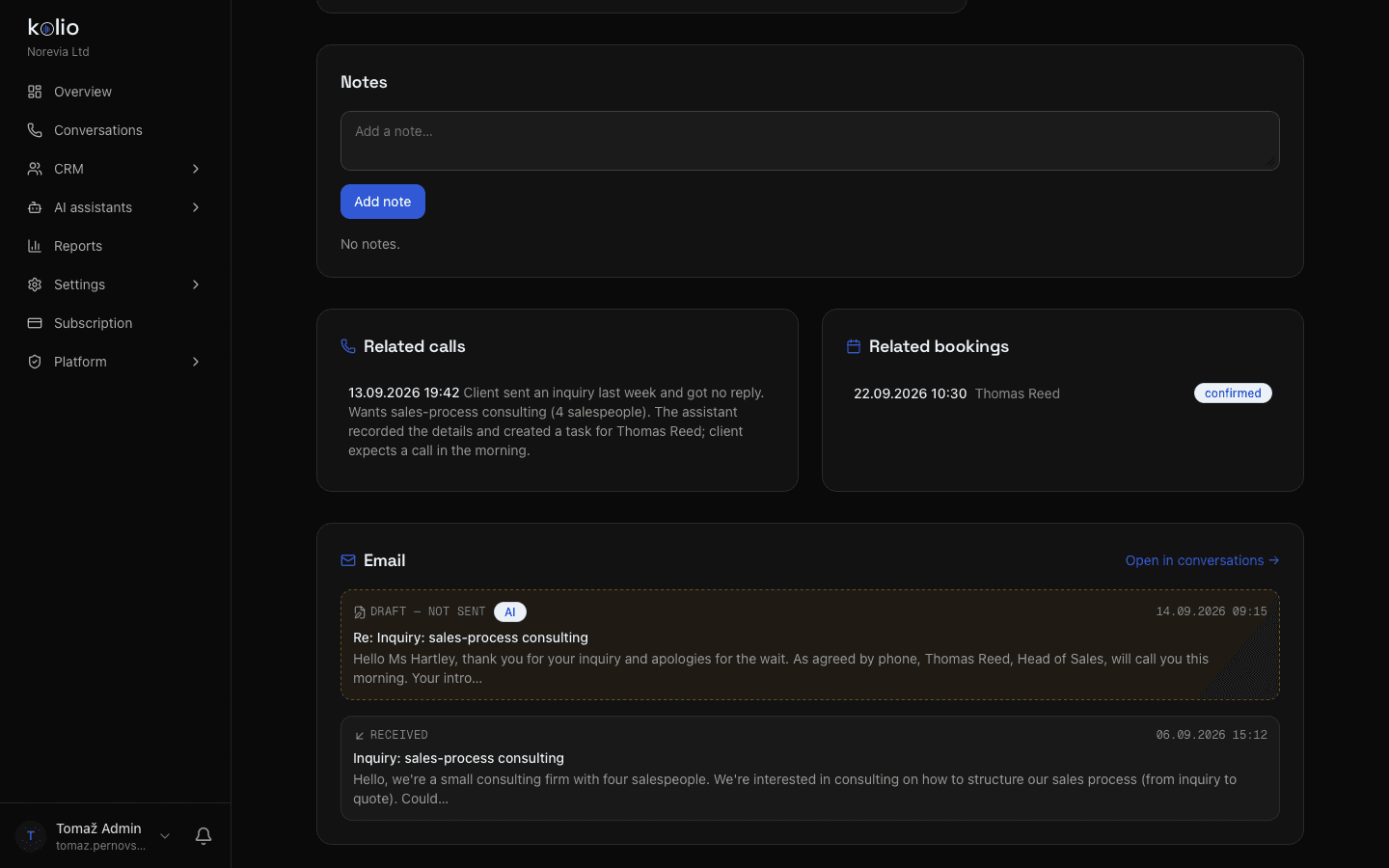
| Field | Note |
|---|---|
| First name, Last name | At least one of first name, last name, phone or email must be filled in. |
| Phone | Stored in a canonical form (+38641…): a Slovenian number with a leading zero gets the +386 prefix, foreign numbers stay as entered. Kolio searches and links conversations by the normalised number. |
| Inbound messages are attached by it (case-insensitive comparison). | |
| Company | Optional; included in search. |
| Tags | Free-form, comma-separated. The list filter returns contacts that have all selected tags. |
| Notes (field) | Free text on the contact (unlike Notes entries, which are dated and have an author). |
| GDPR / marketing consent | Date, source (manual for a manual checkbox, email for confirmation via link) and the member who recorded it. An existing date is kept when editing. |
Open the conversation
In the Conversations list pick a conversation without the Contact badge.
ConversationsClick “Add contact” (call) or “Create contact” (email)
Kolio first looks for a contact with the same normalised number or the same email address; if one exists it is reused, otherwise a new one is created. You may enter a name or leave it blank (“Unnamed contact”).
Check the linking
All previous conversations from the same number, or all messages from the same address, are attached to the new contact — not just the selected one.
Optionally send a consent request
After saving a contact with an email, Kolio offers to send an email with consent buttons (GDPR and marketing, or GDPR only). The customer’s answer is recorded with source
email.
- Search in the list covers first name, last name, email, phone (normalised as well) and company; the list loads 10 at a time with Load more.
- Notes are dated entries with an author (a member, or
api:key namefor integrations); the interface currently does not support attachments on notes. - There is no merging of two contacts; duplicates are prevented by phone and email matching when creating from a conversation and in the agent tools, while a manually entered contact is not checked.
- Delete from the contact card removes the contact and its notes; conversations, appointments, tasks and email remain without a contact. For a deletion requested by the customer use the GDPR path (below), which also deletes attachments.
Who gets a task and how does the team manage it?
A task in Kolio is a work item for your team with a title, description, status, priority from 0 to 3, due date, assignee and a timeline of all changes. A new task from a conversation is unassigned, unless you chose a default task recipient in Settings → Agent — then they get it and are notified.
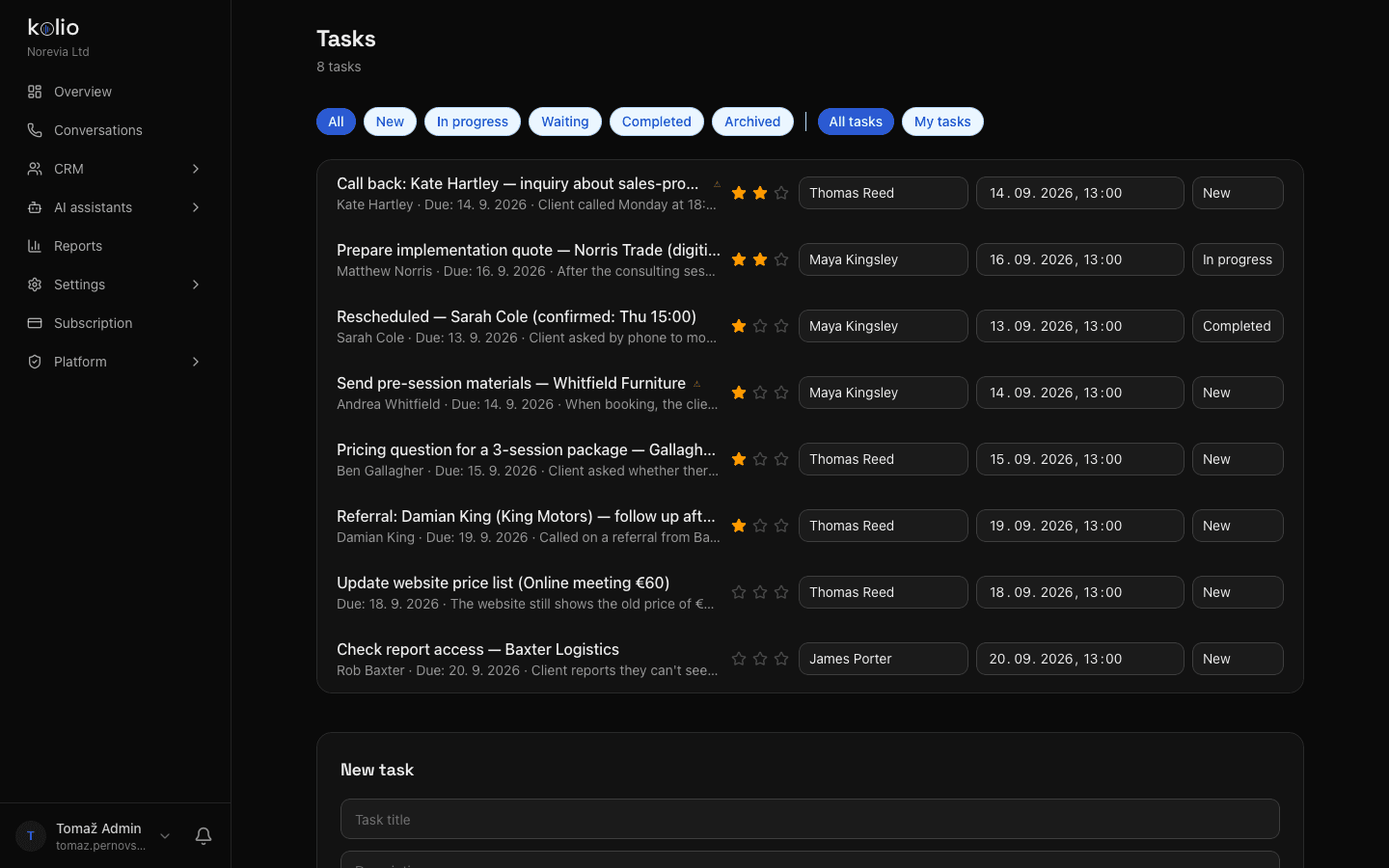
- Who gets it: a task from the agent or the API is “unassigned” and visible to every member with the
nalogepermission in CRM → Tasks. Set a default recipient in Settings → Agent → Default task recipient (must be an active member; if they no longer are, tasks are unassigned again); otherwise the team assigns it with the Assign to field. The task window has an Open conversation link to the originating call or chat. The assignee must be a member of your account (the email is validated). - Notification: on assignment Kolio emails the assignee “New task: …” — if the member is active, did not assign the task to themselves, and has task-assignment notifications enabled in their profile. An unassigned task sends no notification.
- Statuses: New → In progress → Waiting → Completed → Archived; change them in the row selector or in the task window. Filter the list by status and with the My tasks/All tasks toggle; it is sorted by priority, due date and creation time.
- Priority: 0 (none) to 3 stars; there are no named levels.
- Source: “agent” (agent tool), “admin” (the team, including the Add task button in Conversations, which prefills the task from the summary) or “API”.
- Tasks cannot be deleted in the interface — archive completed ones. Deletion is possible via the REST API and MCP (
tasks:write).
| Event | When it occurs | What it contains |
|---|---|---|
created | on creation | task title; the author is a member, bot or api:key name |
status | on status change | “old → new” |
assigned | on (re)assignment | “previous → new assignee” (— = none) |
priority | on priority change | “0 → 2” |
due | on due-date change | the new date or — |
comment | a member’s comment or a change of title/description/customer | text and attachments (up to 5 files) |
The timeline is shown in the task window (click the row or use the ?naloga=ID link). The same events are recorded when an integration changes the task.
Where do I see all appointments?
CRM → Appointments lists every appointment of the company — those the agent booked by phone or chat, those from online booking or the API, and those the team entered by hand. The calendar (CRM → Calendar) is for the day-by-day view and moving; the list is for searching, filtering and quick status changes.
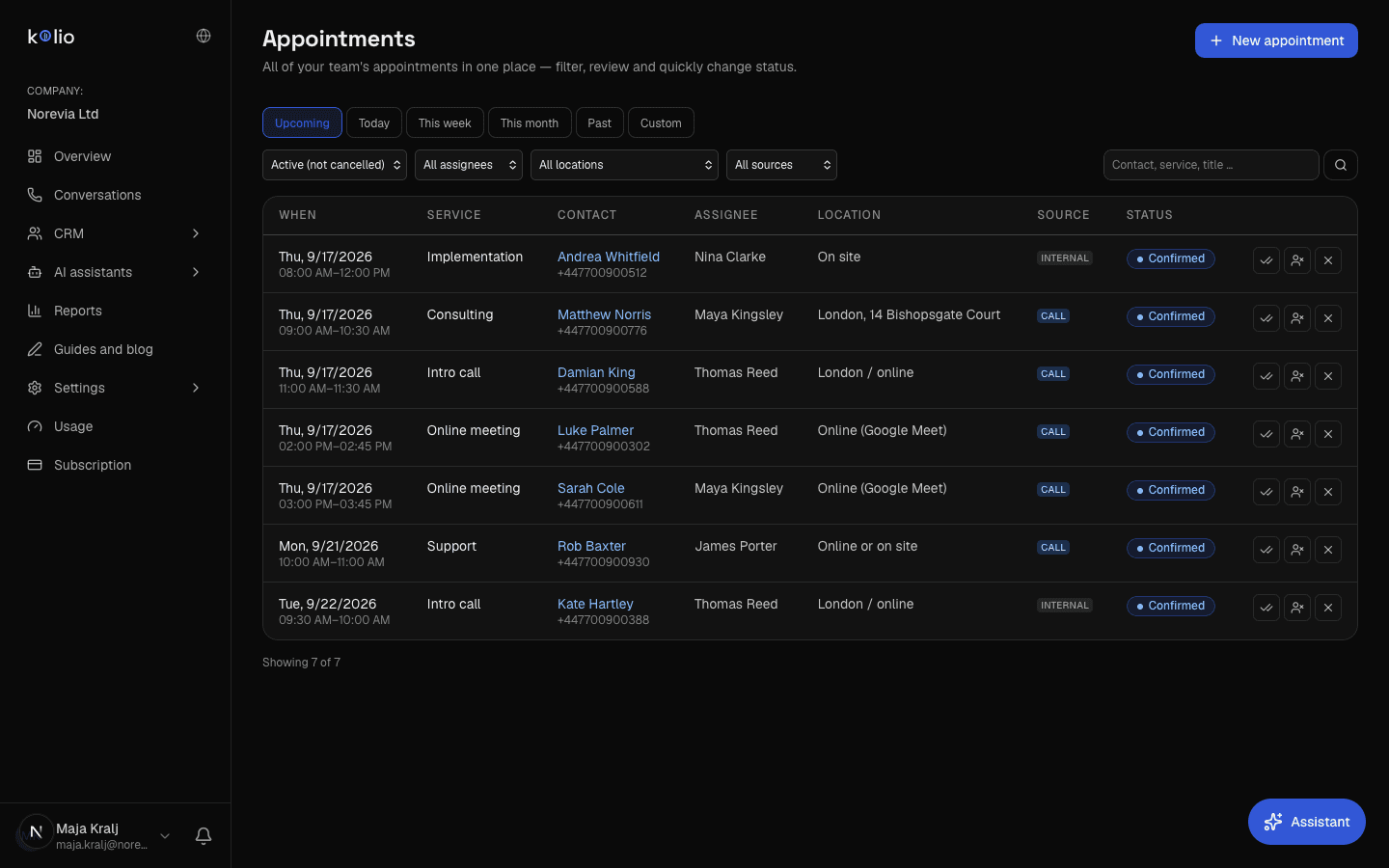
- Source shows where an appointment came from: call, web chat, online booking, internal (team) or API.
- Quick actions in the row: confirm, completed, no-show, cancel; the row opens the appointment in the calendar.
- New appointment opens the calendar with the form; if the appointment is outside the location's opening hours or the member's availability, Kolio warns and asks whether to save anyway — only the team may do that, the agent and online booking never create such appointments.
- The list loads 50 rows at a time ("Load more"); users without the Appointments permission do not see it.
Where do I see all conversations?
The Conversations page (klicni-center permission) brings phone calls, website chats and email together in one list with shared search and filters; from any conversation you can directly create a contact, a task or an appointment.
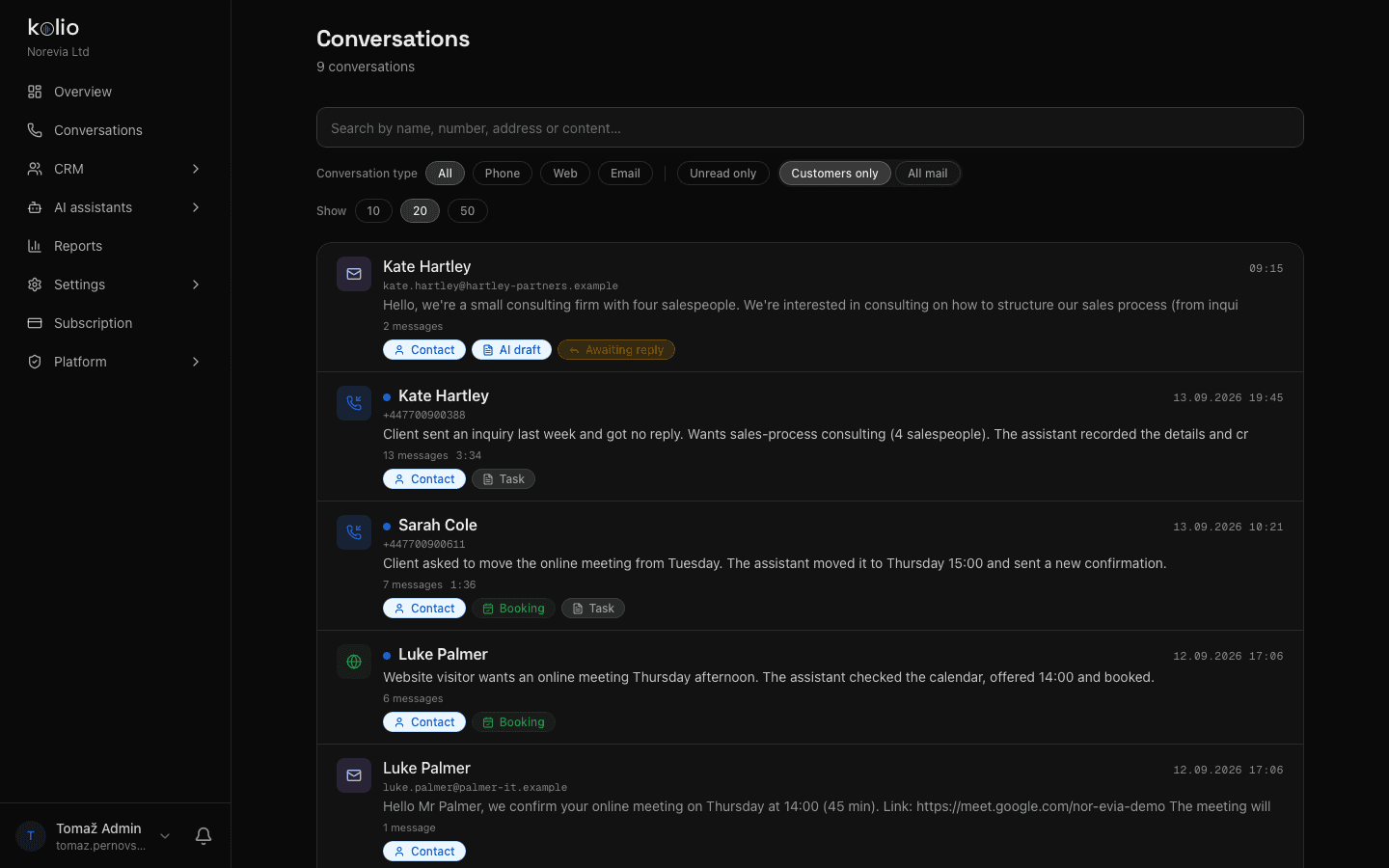
- Filters: by kind (Phone, Web, Email, All), Unread only, search by name, number, subject and the text of transcript and summary; 10/20/50 per page.
- Customers only / All mail: bulk messages (newsletters, system notices, auto-replies), which Kolio flags on receipt from the message headers, are hidden by default. All mail shows them.
- Threads: calls from the same number are grouped into one thread, a session ends after 30 minutes of silence; email is grouped by contact, and without a contact by the other party’s address.
- Badges in the list: Contact, Appointment, Task, AI draft.
- Conversation panel: transcript by role, for calls a summary (Interest, Service, Recommended task, Collected data) and duration; buttons Call (softphone), Open contact / Add contact, Add to calendar, Add task; for email Reply, Draft with AI, Send.
- Kolio does not store audio recordings of calls — the transcript is kept.
Which attachments does Kolio accept?
Kolio accepts attachments in email, task comments and website chat; every file is content-checked and only PNG, JPEG, WebP and GIF images and PDF documents are accepted.
| Where | Per file | Per message / conversation |
|---|---|---|
| Email (reply or new message), task comment | 10 MB | 20 MB and at most 5 files per message |
| Website chat (visitor) | 4 MB | at most 3 attachments per conversation |
| Inbound email | 10 MB | same as outbound; larger attachments are skipped |
Kolio determines the file type from its content (magic bytes), not the extension. Images are re-encoded (EXIF data is dropped); a PDF with JavaScript, automatic actions or embedded files is rejected. HTML, SVG, ZIP and office documents are not allowed.
- Downloads always go through
/api/files/[id]?tenant=…with a membership and permission check (klicni-center,nalogeorkontaktidepending on the kind); the direct storage link never leaves the server. - A PDF is always downloaded as a file (not opened in the browser); images have a thumbnail.
- Attachments not attached to any message within 24 hours (e.g. an abandoned draft) are cleaned up automatically.
How do I export or delete a customer’s data (GDPR)?
Kolio offers a JSON export of the account’s data, permanent cascading deletion of a contact, and automatic retention with a deletion period for transcripts; all three live on Settings → GDPR & privacy (nastavitve permission).
Find the contact ID
Open the contact in CRM → Contacts; the ID is the last part of the browser address (
CRM → Contacts/kontakti/ID).Open GDPR & privacy
Enter the ID in the Contact deletion section.
Settings → GDPR & privacyConfirm the deletion
Kolio first permanently deletes all of the contact’s attachments (files and records), then the contact with its notes and consent requests. Appointments, conversations, tasks and email remain, but without a link to the contact (
contact_id = NULL).Export first if needed
If the customer requests a copy of their data, export before deleting — deletion cannot be undone.
| Data | Effect |
|---|---|
| Contact attachments (email, chat, tasks) | permanently deleted — file and record |
| Notes, consent requests | deleted |
| Appointments, conversations, tasks, email | remain; the contact field becomes empty |
| Conversation transcripts | remain until the retention period expires (below) |
Data export
The Export (JSON) button in the Data export section downloads a file with the contacts, appointments and conversations of the whole account (tenantId, exportedAt, contacts, bookings, conversations). Tasks, notes and email are currently not included in this export; export email from Conversations and tasks via the API (tasks:read).
Data retention
Automatic cleanup runs in the background once a day and deletes conversation transcripts older than your plan’s retention period and the audit log older than 730 days. You can trigger the same cleanup manually with Run cleanup and your own values for Transcripts (days) and Audit log (days).
Limits and what happens when …
The Kolio CRM is deliberately simple: one account, one contact table, no pipelines and no automatic record creation — the list below covers the limits you meet first.
| What happens when … | Answer |
|---|---|
| a customer calls but gives no name | A conversation record is created with the caller number; there is no contact until the agent (tool) or the team (Add contact) creates one. |
| the same customer calls from two numbers | Two threads are created; creating a contact from the second number creates a second contact. There is no contact merging — you can correct the phone manually. |
| the agent creates a task but nobody is notified | A task from a conversation has no assignee; the notification goes out only on assignment. Set a Default task recipient in Settings → Agent, or at least one member should regularly check CRM → Tasks with the New filter. |
| an integration creates a task | The timeline author is api:key name; the task.created and task.updated webhooks fire only for the API and MCP, not the interface. |
| an attachment exceeds 10 MB or has the wrong type | Kolio rejects it with an upload error; inbound email is stored without that attachment. |
| a conversation comes from the simulator | It is not stored; any contact/task/appointment created is real — delete or archive them after testing. |
- There is no CSV export of contacts; the GDPR JSON export and the REST API (
contacts:read) are available, see API. - Tasks have no kanban board — only a filtered list.
- The contact card shows the last 20 linked calls.
- The task list shows up to 300 tasks for the current filter.
- CRM access for integrations is limited by the key scopes
contacts:*andtasks:*, which never exceed the permissions of the member who issued the key.