What does the agent need to book an appointment?
The Kolio AI agent can book an appointment once you have at least one active location with opening hours, at least one active service and at least one team member who performs that service and has a schedule at that location.
Everything lives in Settings → Booking, which has four tabs: Locations, Services, Availability and Online booking. In a conversation the agent calls the tools for free slots and booking itself — you only decide where, what and who.
- Location (Locations tab): name, address, opening hours per weekday and closures (public holidays, collective leave). A location is a salon, branch or “online”.
- Service (Services tab): name, duration in minutes, optional price and description. A service is not tied to a location — where it is performed follows from team availability.
- Team availability (Availability tab): each member's weekly schedule at a given location, optionally limited to selected services. Which services a member performs is set in their own profile.
- Company time zone (Settings → General): default
Europe/Ljubljana. Opening hours, the calendar and reminders all follow it.
How do I add a location and a service?
A location in Kolio is where you receive customers; a service is anything a customer books: an examination, consultation, haircut, viewing or meeting. Each service has its own duration, from which Kolio computes free slots.
Add a location
You need the
Settings → Booking → Locationsservicespermission (the account owner always has it). Enter the Name (optionally an English name for foreign customers) and Address, then click Add. With a single location the agent never asks the customer where they want to come.Enter the location's opening hours
Under the location pick a weekday, the from and to times and click Add. Repeat for each day; a day can have several windows (morning and afternoon). Enter public holidays and leave as a Closure (date range, for one or all locations).
Add a service
Enter the Name and Duration (min); price and description are optional. Click Add.
Settings → Booking → ServicesSet a member's availability
Pick the member and location, enter the day and times and optionally limit the entry to selected services. The member must also have the service ticked in their profile (Services I perform).
Settings → Booking → AvailabilityCheck the calendar
In CRM → Calendar the location's opening hours are shown as a lighter band; outside it the background is dimmed.
CRM → CalendarTest with the agent
In AI agents → Call simulator say: “I'd like to book [service name]”. The agent must list free slots (with several locations it first asks for the location). A booking made in the simulator goes into the real calendar, so cancel it afterwards.
| Field | Meaning | Limits and default |
|---|---|---|
| Name | The agent finds the service by name: exact match first, then a name containing the spoken phrase. Use names the way customers say them. | required |
| Duration (min) | Appointment length and the search step: free slots follow each other without gaps (9:00, 9:30, 10:00 at 30 min). | 5–480 min, step 5, default 30 |
| Price (€) | Informational; the agent can quote it if asked. It never issues offers or invoices. | optional, decimal comma or point |
| Description | Short description for the agent and the team. | optional |
| Online booking | Whether the service is also offered on the public booking page (see Online booking). | off |
On save a slug (ASCII identifier from the name) is created and does not change on rename. A changed duration applies to new appointments only. There is no service capacity any more: the number of parallel appointments equals the number of free members at the location.
| Field | Meaning |
|---|---|
| Name / English name | The agent says it and matches it against what the customer says (“in Ljubljana”). Foreign customers see the English name on the public page. |
| Address | The agent can tell it to the customer when asked; on the public page it appears under the location choice. |
| Opening hours | Windows per weekday; outside them there are no free slots, regardless of member schedules. |
| Closures | Date ranges (holidays, leave) for one or all locations. Slots inside a closure are not free. |
| Active | An inactive location is not offered to the agent or on the public page; existing appointments remain. |
How do I set location opening hours and team availability?
Kolio has two layers of availability: location opening hours (when the branch is open, applies to everyone) and each member's schedule at a location (when a given person is available there and for which services). A free slot must satisfy both; there is no per-service schedule any more.
Location opening hours
Enter opening hours on the Settings → Booking → Locations tab under each location. Each row is one weekday with from and to times; rows repeat every week. Remove one with ✕. Closures (holidays, leave) are entered as a date range.
Team member schedule
Edit a member's schedule on the Settings → Booking → Availability tab (services permission). Every entry belongs to a location; a weekly entry can be limited to selected services (e.g. mornings only examinations). Which services a member performs at all is set by each member in their own profile, section Services I perform.
Pick the member and location
Your own schedule is selected by default; choose another member and the location in the pickers at the top.
Settings → Booking → AvailabilityEnter the date and times
The weekday follows from the date. From and To use 5-minute steps, default 09:00–17:00.
Choose the entry type
The Repeats weekly switch creates a weekly schedule (optionally with Repeats until and a Services selection the member performs then; empty = all theirs). The Absence (leave, no-show) switch creates a block, optionally All day and Absent until. Without either switch you get a one-off extra slot.
Save
If the entry overlaps an existing one or falls outside the location's opening hours, Kolio warns and offers Save anyway. The Weekly overview shows configured availability (not free slots).
| Entry | How to create it | Effect |
|---|---|---|
| Recurring schedule | Repeats weekly switch | The member is available at this location every such weekday from the entry date until the chosen end (or open-ended), for the selected or all of their services. Can be paused with Turn off. |
| One-off extra slot | no switches | The member is available at this location on that day in the entered window, even if the weekly schedule does not cover it. |
| Absence | Absence switch | A block for part of the day or all day (applies at all locations); for an absence until a date one block per day is created, at most 92 days at once. |
How does the agent choose a slot?
The Kolio AI agent searches for free slots with the same core as the team calendar and the public page (getFreeSlots): for the chosen service and location it checks the location's opening hours, closures, the schedules of members who perform the service there and existing appointments, then offers the customer the first three free slots.
- Location first. If you have several locations, the agent asks the customer where they want the appointment before searching (“Ljubljana or Maribor?”); with one location it never asks. The list of locations with address and opening hours is in its system prompt, so it never denies a branch just because the knowledge base does not mention it.
- Search step = service duration. For a 30-minute service the suggestions are 9:00, 9:30, 10:00 … within the location's opening hours.
- Earliest slot is by default 60 minutes from the call, latest 30 days ahead. Both are set in Settings → Booking → Services, card Agent booking window; they apply to all services, an empty field means the default.
- Free performer: a slot is free as long as at least one member at the location performs the service, has a schedule then and has no other appointment. Parallel appointments = number of free members.
- Assignee is set automatically on the agent's appointment only when exactly one member is available at that time; otherwise it stays unassigned and the team assigns it in the calendar.
- Appointments that touch (end of one = start of the next) do not overlap.
| Tool | What it does | Required from the customer |
|---|---|---|
poglej_storitve | Lists active services and locations with address and opening hours, optionally for a given place. | — |
poisci_proste_termine | Returns the first 3 free slots for a service in a period (default next 14 days); with several locations it also names the slot's location. | service name; with several locations the location |
ustvari_termin | Books the appointment at the location, creates or updates the CRM contact and returns the appointment code. With several locations and none given it refuses and tells the agent to ask the customer. | start; with several locations the location; per the agent's instructions also service, first and last name, phone, email if needed |
prestavi_termin / preklici_termin | Reschedules (location stays) or cancels an existing appointment by code. | appointment code |
poglej_koledar | Shows up to 8 appointments of the caller or period (by phone or name). | — |
The contact is matched by normalised phone number, otherwise by email; if none exists the agent creates one (see CRM and tasks).
poisci_proste_termine(storitev: "Check-up", lokacija: "Ljubljana", od_datuma: "2026-09-16")
→ Free slots for Check-up at Ljubljana: Wednesday 16 Sep at 9:00; Wednesday 16 Sep at 9:30; Wednesday 16 Sep at 10:00.

ustvari_termin(storitev: "Check-up", lokacija: "Ljubljana", zacetek: "2026-09-16T09:30", ime: "Ana", priimek: "Novak", telefon: "041 123 456")
→ Success: Check-up booked (Wednesday 16 Sep at 9:30, location Ljubljana). Code: 3f2c…

ustvari_termin(…, zacetek: "2026-09-16T20:00")   # outside opening hours
→ Tool error ustvari_termin: The slot is outside the location's opening hours.Calendar and Appointments for the team
The Kolio calendar (CRM → Calendar, appointments permission) shows all of the tenant's appointments — booked by the agent, entered by the team, made on the public page or created via API and MCP — in a weekly or daily view. The same appointments are available as a filterable list under CRM → Appointments.
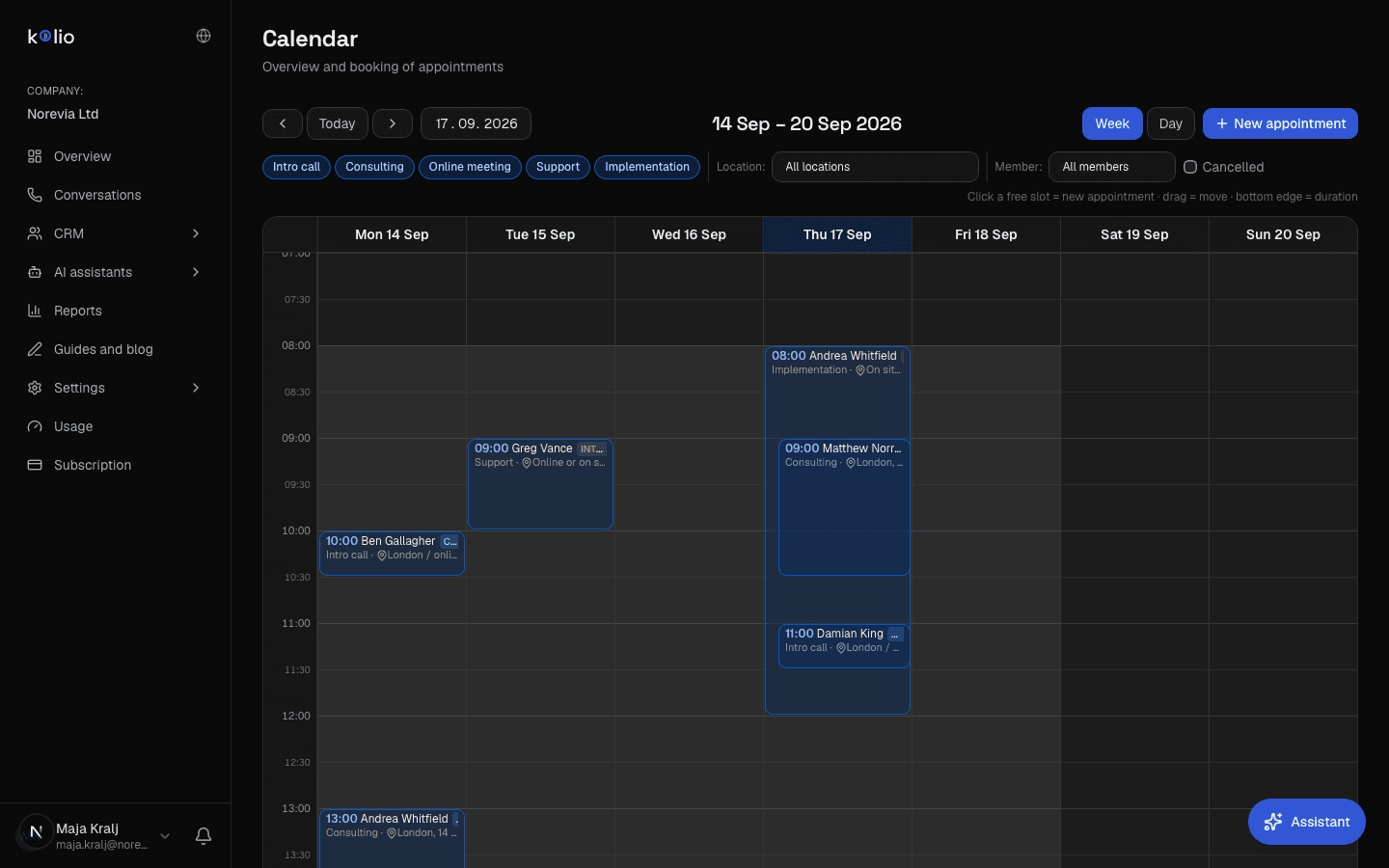
- View: weekly by default (Mon–Sun), daily on screens under 768 px; the choice is remembered in the browser. The calendar refreshes every 60 seconds.
- New appointment: clicking a free spot (tap on touch) opens a dialog with Service, Location, Title, Date, Time, Duration (min), Customer (search by name or phone), Assignee, Notes and the Send confirmation email to customer switch.
- Internal entry with a warning: if the appointment falls outside the location's opening hours, on a closure day or when no performer is free, Kolio warns and offers Save anyway. The team can knowingly enter an exception; the agent, the public page and the API never do.
- Free event: pick — no service — and enter a title. Free events (meetings, lunch) do not occupy performers and skip overlap checks — the internal calendar allows parallel meetings.
- Rescheduling: drag the card (long press 350 ms on touch); change the duration by dragging the bottom edge. Both snap to 5 minutes and ask for confirmation (Move appointment? / Change duration?); the appointment's location stays.
- Filters: by service, by location (if there are several), Assignee: All / Mine and the Cancelled switch.
- Appointments (list): CRM → Appointments lists appointments by period, service, location, assignee, source and status; filters live in the URL so you can share the view with colleagues.
| Label | Meaning |
|---|---|
| confirmed (default) | A booked appointment; created by every booking from the calendar, the agent or the API. |
| unconfirmed | Status pending; shown in amber. It cannot be set in the calendar dialog; it arrives via API or MCP (update_event). |
| completed / no-show | Statuses completed and no_show; likewise via API or MCP. |
| cancelled | Grey, struck through; hidden until you enable the Cancelled filter. Does not occupy a performer and cannot be dragged. |
| badge “agent” / “web” / “API” | Source of the appointment: booked by the AI agent, submitted via a public form, or created by an integration. |
Customers can also book appointments themselves on a public page — see the chapter Online booking; such appointments carry the source “Online booking”.
When does the customer receive an appointment reminder?
Kolio sends the customer one email reminder on the day of the appointment, once it is at least 7:30 in the company time zone, for all of today’s appointments that are still ahead and not cancelled.
- The reminder is sent from your own mailbox, connected in Settings → Email: IMAP/SMTP first, otherwise the Google account (Gmail). Without a connected mailbox there are no reminders; the error is logged and the appointment stays. See Email.
- It is sent only if the appointment’s contact has an email address. An appointment without a contact, or a contact without email, gets no reminder; Kolio has no SMS reminders.
- Content: subject “Opomnik na termin” (Appointment reminder), body with the service name (or event title) and the date. The text is currently not customisable and is in Slovenian.
- The check runs every hour at :30, so appointments created after 7:30 get their reminder on the next run. Each appointment gets at most one reminder (double protection: a timestamp on the booking and a record in CRM email).
- Booking confirmation is sent only when the team creates the appointment in the calendar and leaves the Send confirmation email to the customer switch on (subject “Potrditev termina”). Agent, API and MCP bookings do not send confirmations.
Limits and common problems
The most common reason the Kolio agent “finds no free slot” is missing or too narrow availability — location opening hours or member schedules — not an agent error. The table below leads from symptom to setting.
| Symptom | Likely cause | What to check |
|---|---|---|
| “I can't find that service” | The service does not exist, is inactive or its name does not match what was said. | Settings → Booking → Services: the name contains the word customers use; the service is not marked inactive. List synonyms in the agent instructions. |
| “I can't find location …” | The customer named a place that matches no active location. | Settings → Booking → Locations: the location name contains the place the way customers say it (e.g. “Ljubljana Rudnik”), the location is active. |
| “No free slots in this period” | The location has no opening hours or is closed, no member performing the service has a schedule at that location, or windows are shorter than the duration. | Locations tab (opening hours, closures) and Availability tab — at least one member with a schedule at the location who has the service in their profile. |
| Slots are always an hour or more away | The minimum lead time is 60 min from the call by default. | Change it in Settings → Booking → Services → Agent booking window. |
| The agent offers nothing beyond a month | The booking horizon is 30 days by default. | Change it in Settings → Booking → Services → Agent booking window. |
| Two appointments at the same time for one performer | One was entered internally with Save anyway or is a free event — those skip performer checks. | In CRM → Appointments filter by assignee; use internal exceptions deliberately. |
| Appointments are shifted by one or two hours | Wrong company time zone or an integration sending times with an offset. | Settings → General → Time zone; in API/MCP send times without an offset or with the correct one. |
| The customer got no reminder | Contact without email, no connected mailbox or a cancelled appointment. | Contact card (email), Settings → Email, appointment status. |
What Kolio does not do (yet)
- No Google Calendar sync. Appointments live only in Kolio. The Google connection in Settings → Email is used only for sending via Gmail.
- An external calendar or booking system connects through the MCP server or REST API (tools
list_locations,find_free_slots,create_event,update_event…): the external system reads and writes the Kolio calendar with a key scopedbookings:write. See API and MCP. - No buffer between appointments; if you need one, extend the service duration.
- The calendar loads at most 62 days at once; member schedules are not drawn in the calendar, the locations' opening hours are.
- Only the team can enter an appointment outside opening hours or without a free performer via Save anyway; the agent, public page, API and MCP always follow the rules.