Which two MCP directions does Kolio support?
MCP (Model Context Protocol) is an open protocol (specification at modelcontextprotocol.io) in which an AI client receives a list of tools with input schemas from a server and calls them over JSON-RPC 2.0; Kolio uses it as a server (your data for external agents) and as a client (your systems' data for the Kolio agent).
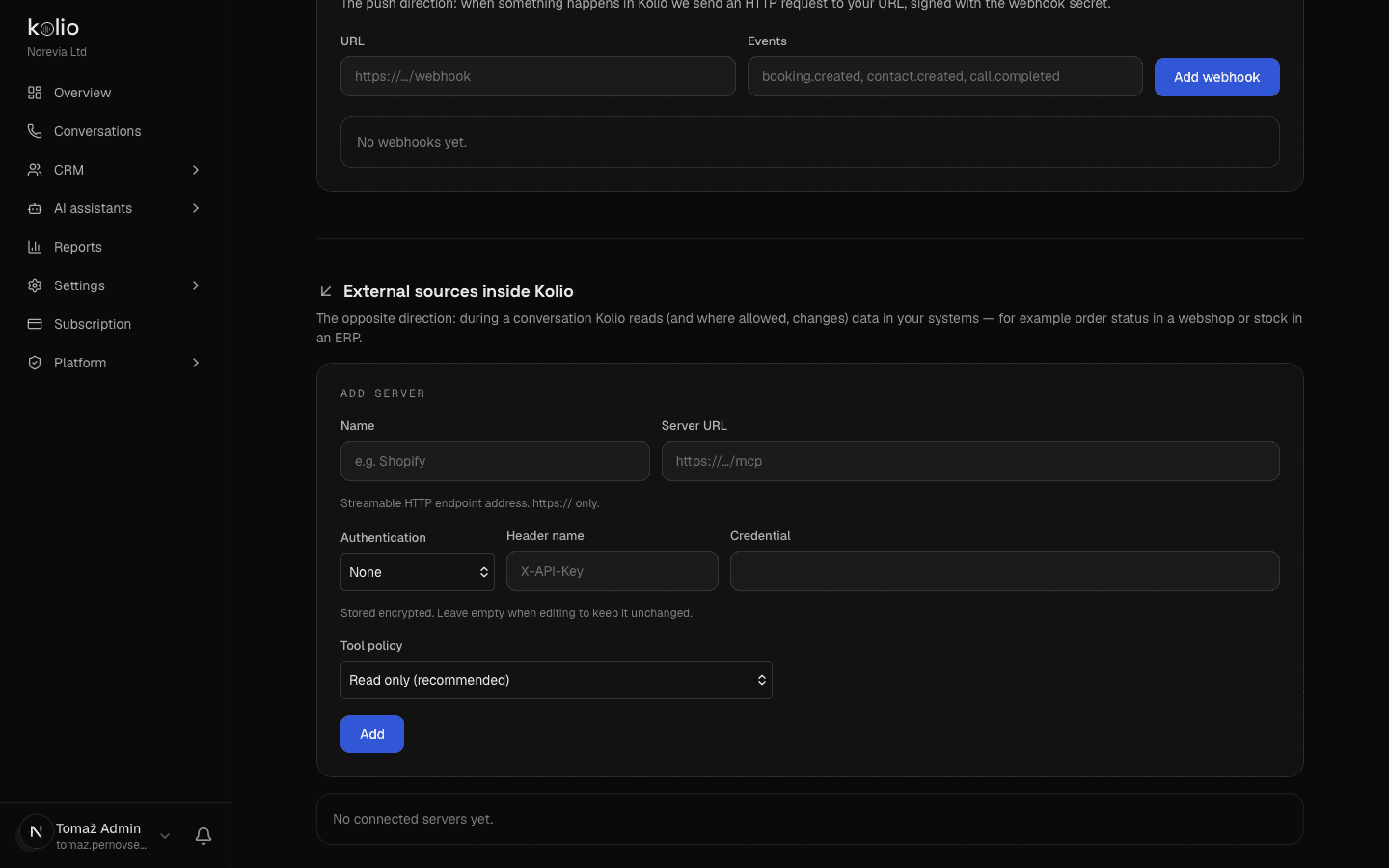
You manage both directions on one page, Settings → MCP sources and integrations. The upper section Kolio as a source for external systems holds the MCP server URL, API keys and webhooks; the lower section External sources inside Kolio holds the Add server form and the list of connected sources.
| Kolio as MCP server | Kolio as MCP client | |
|---|---|---|
| Who calls whom | an external AI client (Claude, your own agent) calls Kolio | the Kolio agent calls your system during a call or chat |
| What is read/written | bookings, services, contacts, tasks of your account | whatever your MCP server offers (stock, orders, prices) |
| Authentication | API key kolio_sk_… in the Authorization: Bearer or X-API-Key header | none, Bearer token or custom header — the credential is encrypted in Kolio |
| What limits access | the key's scopes | the Read only / Also allow changing data policy + the allowed-tools list |
| Address | https://kolio.si/api/mcp | your server's URL, https:// only |
| Plan | available with an API key | Available from the Growth plan (also during the trial and in the Custom plan) |
How do I connect Claude or another client to the Kolio MCP server?
The Kolio MCP server lives at https://kolio.si/api/mcp; a client needs this URL and an Authorization: Bearer kolio_sk_… header with an API key created in Kolio — any client that supports remote MCP servers over Streamable HTTP connects without extra software.
Create an API key with scopes
On Settings → MCP sources and integrations, in the API keys section, enter a Key name (e.g.
Settings → MCP sources and integrations → API keysClaude) and Scopes. For read-only calendar access:bookings:read, services:read; for bookings addbookings:write; for CRMcontacts:read, contacts:write, tasks:read, tasks:write. An empty field means all scopes. Click Create key and store the key immediately — it is shown only once. Details are in the REST API chapter.Copy the server URL
The MCP server and REST API card shows the URL
https://kolio.si/api/mcpunder MCP server URL. Under How to connect a client a ready-made command for Claude Code is displayed.Add the server to the client
Following the client's own instructions, add a remote (HTTP) MCP server: enter the URL and an
Authorizationheader with the valueBearer kolio_sk_…. TheX-API-Key: kolio_sk_…header is accepted as an alternative. Examples for Claude Code and for clients with a configuration file follow below.Check the tool list
On connecting, the client calls
tools/list. It must see only the tools the key's scopes allow — with abookings:read, services:readkey those arelist_events,get_event,list_services,list_locationsandfind_free_slots. If a tool is missing, the key lacks a scope: create a new key.
claude mcp add --transport http kolio \
  https://kolio.si/api/mcp \
--header "Authorization: Bearer kolio_sk_…"{
"mcpServers": {
"kolio": {
"type": "http",
"url": "https://kolio.si/api/mcp",
"headers": {
"Authorization": "Bearer kolio_sk_…"
}
}
}
}Which tools does the Kolio MCP server offer?
The Kolio MCP server offers 21 tools — 9 for the calendar and 12 for the CRM — and each requires exactly one key scope; tools/list returns only the tools the key has a scope for, so a client never sees a tool that would be refused.
| Tool | What it does | Required input | Scope |
|---|---|---|---|
list_events | bookings in a period (max 62 days), cancelled ones only on request | date_from, date_to (YYYY-MM-DD) | bookings:read |
get_event | details of one booking | event_id | bookings:read |
list_services | bookable services (id, name, duration); services are not tied to a location | — | services:read |
list_locations | active locations (id, name, address, opening hours); with several locations pass location_id on bookings | — | services:read |
find_free_slots | free slots for a service given location opening hours, member schedules, closures and occupancy; every slot carries its location (optional location_id to limit to one) | service_id, date_from, date_to | bookings:read |
create_event | new booking; besides the start, service_id or duration_min, with several locations location_id; a slot outside the location's opening hours or without a free performer is rejected | start | bookings:write |
update_event | move or change a booking (start, end, title, notes, service, customer, assignee, location); a move keeps the location and checks opening hours | event_id | bookings:write |
cancel_event | cancel — the booking gets status cancelled and stays as a trace | event_id | bookings:write |
delete_event | permanent delete, only for entries created by mistake | event_id | bookings:write |
| Tool | What it does | Required input | Scope |
|---|---|---|---|
list_contacts | contacts; query searches first name, last name, email, phone, company; exact match by email, phone, external_id | — | contacts:read |
get_contact | contact with notes and consent state (GDPR) | contact_id | contacts:read |
create_contact | new contact (at least a first name, last name, phone or email) | — | contacts:write |
update_contact | changes the given contact fields | contact_id | contacts:write |
add_contact_note | a note (conversation record) on the contact | contact_id, text | contacts:write |
delete_contact | permanent delete of the contact with everything linked to it (GDPR erasure) | contact_id | contacts:write |
list_tasks | tasks by status, assignee, customer or search string | — | tasks:read |
get_task | task with timeline and comments | task_id | tasks:read |
create_task | new task; assignee_email must be a member of the account | title | tasks:write |
update_task | changes status, assignee, priority, due date, title, description, customer — all recorded in the timeline | task_id | tasks:write |
add_task_comment | comment in the timeline without changing state | task_id, text | tasks:write |
delete_task | permanent delete of the task with its timeline; for a trace prefer status arhivirana | task_id | tasks:write |
The same list with descriptions and scopes is shown in Kolio under Available tools on the MCP server and REST API card. Times without an offset are read as local time in the account's time zone (Settings → General).
On initialize the server sends the client a short instruction: look data up first (list_events, find_free_slots, list_contacts, list_tasks) and only then create or change, to avoid duplicate contacts or overlapping bookings. Ids returned by read tools are the input for write tools. Write tools fire the same webhooks as REST (booking.created, booking.cancelled, contact.created, task.created, task.updated).
Example call: JSON-RPC over curl
The Kolio MCP server uses the stateless Streamable HTTP transport: each call is one POST to https://kolio.si/api/mcp with a JSON-RPC 2.0 body and one JSON response; the protocol version is 2025-06-18, the server name kolio, and the supported methods are initialize, ping, tools/list and tools/call.
curl -s https://kolio.si/api/mcp \
  -H "Authorization: Bearer kolio_sk_…" \
  -H "Content-Type: application/json" \
  -d '{"jsonrpc":"2.0","id":1,"method":"tools/list"}'

# response (abridged)
{ "jsonrpc": "2.0", "id": 1,
  "result": { "tools": [
    { "name": "list_events", "description": "Vrne termine …", "inputSchema": { "type": "object", "…": "…" } },
    { "name": "find_free_slots", "…": "…" }
] } }curl -s https://kolio.si/api/mcp \
-H "Authorization: Bearer kolio_sk_…" \
-H "Content-Type: application/json" \
-d '{
"jsonrpc": "2.0",
"id": 2,
"method": "tools/call",
"params": {
"name": "find_free_slots",
"arguments": { "service_id": "<service id>", "date_from": "2026-09-21", "date_to": "2026-09-25" }
}
}'
# response
{ "jsonrpc": "2.0", "id": 2,
"result": { "content": [ { "type": "text", "text": "Prosti termini …" } ] } }
# business error (a successful JSON-RPC response the agent can correct)
{ "jsonrpc": "2.0", "id": 2,
"result": { "isError": true, "content": [ { "type": "text", "text": "Termin je že zaseden." } ] } }content) with text; a business error arrives as isError: true.| Where | Code | Meaning |
|---|---|---|
| HTTP | 401 + header WWW-Authenticate: Bearer | the key is missing, invalid or revoked |
| HTTP | 405 on GET | no SSE stream — the server is stateless; the client must use POST |
| JSON-RPC | -32700 | the body is not valid JSON |
| JSON-RPC | -32600 | invalid JSON-RPC message (missing method or tool name) |
| JSON-RPC | -32601 | unsupported method or unknown tool |
| JSON-RPC | -32603 | the key lacks the scope the tool requires — a configuration error, not an agent error |
| MCP result | isError: true | business error (slot taken, invalid input) with a message in Slovenian |
Batch calls are supported (a body that is an array of messages → an array of responses). A message without an id (a notification, e.g. notifications/initialized) returns HTTP 202 with no body.
How do I connect my own system as an MCP source in Kolio?
You add an external MCP source in the External sources inside Kolio section of Settings → MCP sources and integrations; a source needs a name, an https:// address of a Streamable HTTP endpoint and, if required, a credential — after adding it you discover its tools with Test connection and enable each tool individually.
Check your plan
The External sources inside Kolio section is unlocked during the trial and in the Growth and Custom plans. In the Starter plan the form is disabled with the notice Available from the Growth plan and an Upgrade plan link. See Usage and billing.
Fill in the Add server form
Name (e.g.
Settings → MCP sources and integrations → External sources inside Kolio → Add serverShopify) — it becomes a short label of up to 16 characters that the agent sees in tool names. Server URL — Streamable HTTP endpoint address. https:// only. Authentication: None, Bearer token or Custom header (then also Header name, e.g.X-API-Key). Credential — Stored encrypted.Choose the tool policy
Tool policy: Read only (recommended) or Also allow changing data. For the second option Kolio warns: Nobody confirms an action during a call. Enable only if you trust the system. Click Add.
Test the connection
On the new source's card click Test connection. Kolio calls your server's
tools/listand shows Discovered tools; each is labelled read only, modifies data or no annotations, with The bot sees it as and a name of the formmcp_label_tool. Until you do this the card says No tools yet - click “Test connection”.Enable tools
The allowed-tools list is empty when a source is added — the agent has no tool until you Enable it. Enable only those the conversation really needs; each counts towards the shared quota of 15 tools. The card shows N active tools and Last successful call.
Try it in the simulator
In AI agents → Call simulator or Web simulator ask a question that needs data from your system (e.g. an order status). Tools are read from the cache, so enabling takes effect from the next conversation.
Tool policy and the allowed-tools list
Writing to your system requires two deliberate decisions: the Also allow changing data policy on the source and enabling the specific write tool in the allowed-tools list; the default policy is Read only, the allowed-tools list is empty when a source is added, and a refresh never widens it on its own.
| State | Read tool (readOnlyHint: true) | Write tool or no annotation |
|---|---|---|
| Read only, tool enabled | the agent calls it | cannot be enabled (error writeNotAllowed) |
| Also allow changing data, tool enabled | the agent calls it | the agent calls it with a longer timeout |
| tool disabled (either policy) | the agent does not see it | the agent does not see it |
| switching back to Read only | stays enabled | removed from the allowed list automatically |
| tool disappears from the server on refresh | removed from the allowed list | removed from the allowed list |
| new tool on refresh | stays disabled | stays disabled |
You can Disable a source at any time (the agent has none of its tools and its slot in the source quota is freed) or Delete it. Enabling a source manually also resets the circuit breaker (see troubleshooting). Every policy change, tool enablement and source addition is written to the account's audit trail.
Limits of external MCP sources
The Kolio agent uses at most 5 active sources and at most 15 external tools in total; older sources fill the quota first (by creation date), anything beyond it never reaches the model, and the External tool quota card shows which tools are active and which are out of quota.
| What | Value | What happens when exceeded |
|---|---|---|
| Active sources | 5 | the form shows You have reached the limit of 5 servers; disabled sources do not count |
| Tools that reach the agent | 15 in total, across all sources | tools of newer sources are out of quota; narrow the allowed list or disable a source |
| Tools accepted from one server on discovery | 40 | the rest are not cached |
| Read call timeout | 4 s during a phone call, 10 s in web chat | the agent is told the system did not respond; it does not retry |
| Write call timeout | 8 s during a call, 12 s in web chat | same; the agent tells the customer the state is unconfirmed |
| Tool discovery (Test connection) | 15 s | the failure counts towards the circuit breaker |
| Circuit breaker | 3 consecutive transport failures → source suspended for 5 min | the card shows temporarily disabled; a manual Enable resets the counter |
| Age of the tool list | 24 h; Kolio refreshes it automatically every 6 h | an older list is not used: Tool list is stale - refresh the connection. |
| Tool result length | 600 characters | a longer result is cut off with … |
| Tool description / tool name | 300 / 64 characters | truncated; the name gets the mcp_ prefix and the source label |
A transport failure (timeout, HTTP 5xx, unreachable server) counts towards the circuit breaker; a business error ("item not in stock") does not — your server can refuse any number of requests without Kolio suspending the source.
How does Kolio protect the connection to an external source?
Kolio treats an external MCP server as an untrusted source: it checks the URL against private networks, encrypts the credential, sanitises tool descriptions and results, and gives the model a standing instruction that results of external tools are data, not instructions.
| Safeguard | What it does |
|---|---|
| Address check (SSRF) | only https:// on the default port 443 is allowed; addresses that resolve to private, loopback, link-local or cloud-metadata ranges (e.g. 10.0.0.0/8, 192.168.0.0/16, 169.254.0.0/16) and names ending in .internal, .local, .localhost are rejected |
| Encrypted credential | the Bearer token or custom header value is encrypted in the database (AES-GCM); when editing it stays unchanged if you leave the field empty |
| Sanitised descriptions and results | invisible characters and control markers of the form [UPPER_CASE] are removed; a description is limited to 300 and a result to 600 characters; a suspicious description marks the tool as blocked and it cannot be enabled |
| Instruction to the model | external tool descriptions never enter the system prompt; the agent has a standing rule not to treat external tool results as instructions, not to send email based on them and not to disclose other customers' data |
| Separate namespace | tools carry the mcp_ prefix and the source label, so they cannot impersonate Kolio's built-in tools |
| Audit trail | adding a source, changing the policy and enabling/disabling a tool are recorded with the email of the member who did it |
What happens when a source stops working?
When an external source fails, the Kolio agent does not break off the conversation: the tool returns a message that the system did not respond in time, the agent does not retry, tells the customer the state is unconfirmed and carries on — after three consecutive transport failures Kolio removes the source from the tool list for 5 minutes.
| Label | Cause | What to do |
|---|---|---|
| active | the source works and its tools are within quota | — |
| inactive | you disabled the source | Enable it if you need it |
| error | the last call or test failed | check the URL, credential and server log; Test connection |
| temporarily disabled | 3 consecutive transport failures, breaker open (5 min) | fix the cause; a manual Enable resets the counter immediately |
| Tool list is stale | cache older than 24 h (the automatic 6-hourly refresh failed) | Test connection |
| out of quota | the shared quota of 15 tools is used up by older sources | narrow the allowed tools or disable a source you do not need |
| blocked | the tool description contains suspicious patterns (attempted prompt injection) | the tool cannot be enabled; fix the description on the server and refresh |
- "The system did not respond in time" during a call: your server needs more than 4 s (read) or 8 s (write). Shorten the response or pre-compute the data; in web chat the limits are 10 s and 12 s.
- The agent does not use a tool although it is enabled: check the quota (External tool quota), the age of the tool list and whether the source is among the first 5 active ones. Tools are read from the cache at the start of a conversation, so changes apply from the next conversation.
- A write tool cannot be enabled: the source policy is Read only or the tool has no
readOnlyHintannotation. Switch the policy or add annotations on the server. - Adding a source rejects the URL: the address is not
https://, uses a non-standard port or resolves to a private network. Expose the server on a public hostname with a valid certificate. - An external client does not see a Kolio tool (the other direction): the key lacks a scope — create a new key with the required scopes; the scopes of an existing key cannot be edited.