What is Kolio website chat?
Kolio website chat is a chat AI agent for your website: a button in the bottom corner that opens a chat window where visitors talk to the same AI agent as on the phone — with the same instructions, the same knowledge base and the same tools.
The chat runs in a frame (iframe) added to your page by a small script, kolio-widget.js. The conversation itself goes to the Kolio server; your website is only the host — so it does not depend on the system your site is built with.
In the chat, the agent can look up free slots and book an appointment, create a contact and a task for your team, and search the knowledge base. It does not issue quotes and does not guess: anything not covered by the instructions or the knowledge base is handed to your team as a task.
- Where to set it up: AI agents → Web simulator — a live preview at the top, settings and embed code below.
- Who can see it: the preview requires the
asistentipermission, the settings and embed code requirenastavitve. - Where conversations go: to Conversations with the type Web, alongside calls and email.
How do you enable and configure the website chat?
You enable the website chat on the Web simulator page in the Agent settings section; until the The agent is enabled on the website box is checked, the widget does not appear on your site even if the code is already embedded.
Open the Web simulator
In the menu choose AI agents → Web simulator. If you have the
AI agents → Web simulatornastavitvepermission, the Agent settings section is below the preview.Enable the agent
In the Activation card check The agent is enabled on the website. The state is also shown in the page header as the Enabled / Disabled badge.
Set the appearance
In the Appearance card choose the Accent color (the button and the agent's messages), the Position (Bottom right or Bottom left) and the button Icon.
Write the window content
In the Content card enter the Window title (for example the agent's name) and the Welcome message — the first message a visitor sees when the window opens. Both fields are optional.
Save
Click Save. On the first save Kolio generates the public chat key and shows the Embed code card above the form.
| Field | Options | Default | What it controls |
|---|---|---|---|
| The agent is enabled on the website | checkbox | off | Whether the widget renders on your site at all. A disabled agent shows nothing, not even the button. |
| Accent color | color as #rrggbb | #3257d6 | Color of the button and the agent's bubbles. |
| Position | Bottom right · Bottom left | Bottom right | Page corner where the button sits (16 px from the edge). |
| Icon | Chat bubble · Circles · Headset | Chat bubble | Icon on the button while the window is closed. |
| Window title | text | Agent | Title in the header of the chat window. |
| Welcome message | text | Hello! How can I help you? | The agent's first message when the window opens. |
The agent's name, tone and answering rules are not chat settings — they come from the agent instructions (AI agents → Agent instructions) and apply to every channel.
How do you embed the chat on your website?
Embedding Kolio website chat means one line of HTML: a script tag pointing to kolio-widget.js with a data-key attribute carrying the public key of your chat. Kolio shows it in the Embed code card; the Copy button copies it to the clipboard.
<script src="https://kolio.si/kolio-widget.js" data-key="YOUR_KEY" defer></script>Copy the code
On the Web simulator page, in the Embed code card, click Copy. The card appears only after the settings have been saved once.
AI agents → Web simulator → Embed codePaste it into the page HTML
Paste the code into the
heador right before the closingbodytag of every page where you want the chat. If your site has a shared template (header or footer), insert it there once — it then applies to all pages.In content management systems
In WordPress, Shopify and similar systems, insert the code into a theme file or into the field for additional header or footer scripts that your system provides — Kolio needs no plugin. For the exact location follow your system's documentation.
Check it on the site
Open your website. Once the page has loaded and the browser is idle, the agent button appears in the chosen corner. If it does not, check that the agent is Enabled in Kolio and that
data-keyis unchanged.
Opening the chat from your own page
The script creates a window.kolioChat object on the page with the methods open() and close(), so you can open the chat from your own button or link. The optional argument open(text) puts text into the input field but does not send it — the visitor can edit and send it themselves.
<button onclick="window.kolioChat.open('Hello, I would like to book an appointment for …')">Ask us</button>

<!-- closing -->
<button onclick="window.kolioChat.close()">Close chat</button>The script is marked defer, and the chat frame is created only after the load event and when the browser is idle (requestIdleCallback). It never hides page content or blocks rendering, so it does not affect page speed measurements.
Which language does the widget use?
The chat interface language (buttons, labels, error messages) is Slovenian or English and is resolved in this order: the data-lang attribute on the embed code, then the lang attribute on your page's html tag, and finally the default language of your account.
<script src="https://kolio.si/kolio-widget.js" data-key="YOUR_KEY" data-lang="en" defer></script>- Multilingual site: if every language version has a correct
html lang(for exampleslanden), you do not needdata-lang— the widget follows the page. - The language of the agent's replies does not depend on this setting: the agent replies in the language the visitor writes in, following the agent instructions.
- Color scheme: the script reads your page's
color-schemeand renders the frame in the light or dark variant to match the site.
How do you test the chat before publishing it?
The preview on the Web simulator page is the same chat as on your website: the agent really answers, uses your instructions and knowledge base, but the conversation is not recorded in Conversations because it is flagged as a preview.
- The preview appears only while the agent is Enabled; otherwise the page says there is no preview and points you to the settings below.
- Click the button in the bottom corner of the mock page to open the conversation — exactly as a visitor would.
- Changes to the settings (color, position, greeting) show up in the preview after saving, when the page reloads.
- Attachments added in the preview are not stored.
The preview flag is deliberately soft: at most, a visitor can prevent their own conversation from being stored. The daily message quota (see Limits and quotas) applies in the preview as well.
Which attachments can visitors send?
A visitor can attach images and PDF files of up to 4 MB in Kolio website chat, at most 3 attachments per conversation; every file goes through the same checks as attachments from team members (type detected from the file contents, not the name; images re-encoded, PDFs without scripts).
| Limit | Value | Note |
|---|---|---|
| Allowed types | PNG, JPEG, WebP, GIF, PDF | The type is detected from the file contents; HTML, SVG, ZIP and office documents are rejected. |
| File size | up to 4 MB | The visitor sees the error that the file is too large (4 MB maximum). |
| Attachments per conversation | 3 at most | Error: at most 3 attachments per conversation. |
| Uploads per hour | 10 per IP address · 200 per chat | Abuse protection; the visitor sees a rate-limit message. |
The agent sees only the file name, type and size of an attachment — it does not read the contents of the image or PDF. The file is stored as an attachment of the conversation and your team opens it in Conversations; neither the visitor nor the agent ever receives an external file address.
Limits and quotas
Kolio website chat is public and requires no sign-in, so it is protected by a daily quota of 300 messages per combination of chat and visitor IP address and by a hidden anti-bot field; both protections apply to messages and to attachment uploads.
| What | Limit | What the visitor sees |
|---|---|---|
| Messages per day | 300 per chat and IP address (UTC day) | “You have reached the message limit. Please try again later.” |
| Attachment uploads | 10 per hour per IP address · 200 per hour per chat | A rate-limit message on the attachment. |
| Attachment size | 4 MB | File too large (4 MB maximum). |
| Attachments per conversation | 3 | At most 3 attachments per conversation. |
| Disabled agent | — | Nothing — the widget does not render. |
The 300-message quota is counted per visitor (IP address), not per account — many concurrent visitors do not exhaust it.
- Credit usage: every agent reply consumes AI credits of your plan just like a call or an email draft; track it under Usage (Usage and billing chapter).
- One chat per account: each account has exactly one website chat with one key; the same code can be embedded on several websites.
- Rotating the key: Generate new key (Settings permission) creates a new public key the same way as on the first save; the old one stops working immediately and chats on pages with the old code will not start until you update the code.
- The key cannot be rotated in the app. To stop an existing embed, disable the agent.
Where do chat conversations go?
Every visitor conversation is recorded in Conversations with the type Web — in the same list as phone calls and email — with the badges Contact, Appointment or Task next to it whenever the agent created one of those during the conversation.
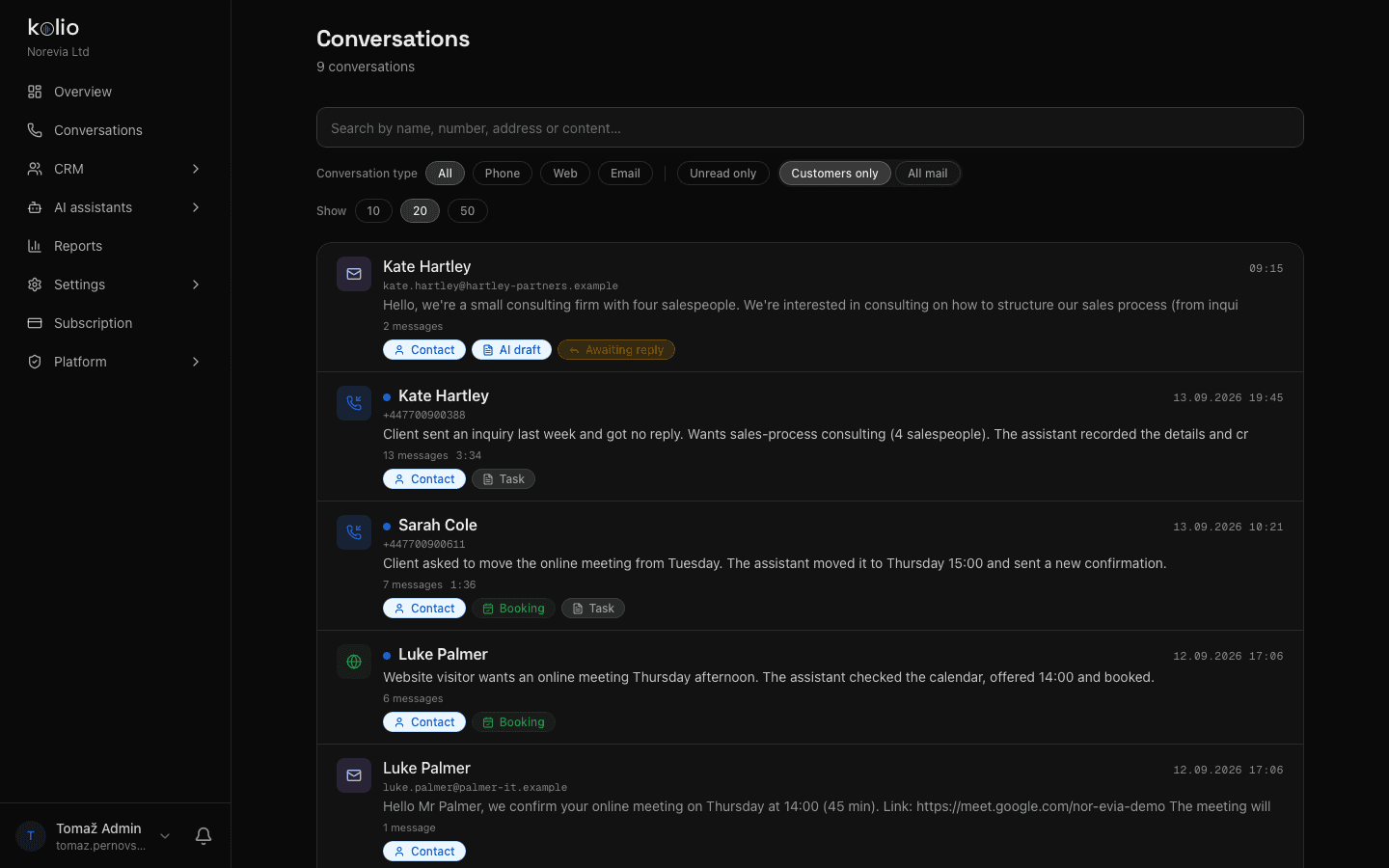
- Filtering: in Conversations, under Conversation type, choose Web; the search field also searches message contents.
- Contact: if the agent records the visitor's name and details with the
ustvari_kontakttool, the conversation is linked to a contact in the CRM and visible on their card. - Task: a question the agent cannot answer, or a request for a quote, becomes a task for your team (
ustvari_nalogo) in CRM → Tasks. - Appointment: a booking made in the chat appears in CRM → Calendar like any other appointment (Calendar and services).
- Chat from inside the Kolio app: for a chat a visitor starts via Help inside the app, the signed-in user is recorded as well — this applies only to Kolio's own account.
A visitor's conversation stays open while the chat window is open; reloading the page starts a new conversation. Your team therefore sees the history in Conversations, the visitor does not.