What does Kolio do with your email?
Kolio Email agent is an AI agent that monitors your existing mailbox, stores every incoming message in the CRM and — if you allow it — drafts a reply following the same instructions and the same knowledge base as on the phone or in the website chat. The reply goes out from your address, not from Kolio's.
Kolio does not replace your mail client and does not take over the mailbox: it reads it in read-only mode, never marks messages as read and never moves them. It tracks its own progress (the last processed message), so it leaves no trace in the mailbox.
- Two paths: your own mailbox over IMAP/SMTP (any provider) or a Google connection (Gmail) via OAuth. Both may be configured; if the IMAP/SMTP mailbox is enabled it takes priority — Gmail is used only when the mailbox is not enabled.
- Sync: Kolio checks the mailbox every 5 minutes; the Refresh button in the Conversations header checks it immediately.
- Where you see the mail: in Conversations with the type Email, threaded by contact or by the other party's address — together with calls and website chats.
- Where you set it up: Settings → Email (the Customer mailbox page;
nastavitvepermission).
How do you connect a mailbox over IMAP and SMTP?
You connect an IMAP/SMTP mailbox on the Settings → Email page in the Your mailbox (IMAP/SMTP) section: enter the IMAP server for receiving and the SMTP server for sending, check both with Test connection and save; the passwords are stored encrypted in the database and are never returned to the interface.
Get the details from your provider
Look up your provider's IMAP and SMTP server addresses, ports and encryption method. If you use two-step verification (Gmail, most providers), create an app password — your normal sign-in password will not work there.
Open the email settings
In the menu choose Settings → Email. At the top is the Email agent card, below it the Your mailbox (IMAP/SMTP) section.
Settings → Email → Your mailbox (IMAP/SMTP)Fill in Receiving (IMAP)
In the Receiving (IMAP) card enter the Server, the Port (default 993), choose SSL/TLS or STARTTLS in the Encrypted connection (SSL/TLS) field, then the Username (usually the full email address) and the Password.
Fill in Sending (SMTP)
In the Sending (SMTP) card enter the Server, the Port (default 465), the encryption method, the Username and Password, plus the Sender address and Sender name — that is how replies to customers will be signed.
Test the connection
Click Test connection. Kolio connects to both servers and shows the result separately for IMAP and SMTP (Connection works. or Connection failed. with the error text). Testing saves nothing.
Enable and save
In the Sync status card leave the Enabled box checked (it is checked by default for a new mailbox) and click Save. The first sync happens on the next 5-minute cycle; the time of the last sync and any error are shown in the same card.
| Provider | IMAP server · port · encryption | SMTP server · port · encryption | Password |
|---|---|---|---|
| Gmail / Google Workspace | imap.gmail.com · 993 · SSL/TLS | smtp.gmail.com · 465 · SSL/TLS (or 587 · STARTTLS) | App password (requires 2-step verification); see Google's IMAP instructions and app passwords. |
| Microsoft 365 / Exchange Online | outlook.office365.com · 993 · SSL/TLS | smtp.office365.com · 587 · STARTTLS | See Microsoft's POP3/IMAP4 documentation; the administrator must allow IMAP and SMTP AUTH (below). |
| Other provider / own server | per provider · 993 (SSL) or 143 (STARTTLS) | per provider · 465 (SSL) or 587 (STARTTLS) | The mailbox password or an app password. |
Values come from the providers' public documentation; for Gmail, Google recommends signing in with Google instead of an app password — in Kolio that is the Google connection (Gmail) section.
How do you connect Gmail through Google?
The Google connection (Gmail) is an equal alternative to the IMAP/SMTP mailbox: Kolio sends and reads mail through the Gmail API with no app password — you grant access by signing in with Google in the Google connection (Gmail) section of the Settings → Email page.
Click Connect Google
In the Google connection (Gmail) section click Connect Google and approve access in Google's window. After signing in, Kolio brings you back to the same page, which shows Connected as with your Gmail address.
Settings → Email → Google connection (Gmail)Check the permissions
Under Permissions both Sending and Reading must be present. If it says No reading, the connection lacks Google's Gmail read permission: click Allow Gmail reading or Refresh connection and approve access again — sending keeps working in the meantime.
Set the sender name
Enter the Sender name and save. Replies will be sent from the connected Gmail address with this name.
Test
The Test connection button shows the result separately for Sending (Gmail) and Reading (Gmail). If reading is marked as skipped, the connection does not yet have the read permission.
Which AI mode should you choose: off, test or on?
The Email agent mode determines what Kolio does with each new customer message: in Off it only stores it, in Test it drafts a reply for your review, in On it replies automatically; the setting belongs to your account and applies to both paths (IMAP/SMTP and Gmail).
| Mode | What happens on a new message | Agent tools | Who sends the reply |
|---|---|---|---|
| Off (default) | The message is stored in the CRM and shown in Conversations. The AI does nothing. | — | Your team, manually; the “Draft with AI” button is still available per message. |
| Test | The AI drafts a reply (“AI draft” badge) that sits in Conversations awaiting review. | Read tools (free slots, knowledge base) run immediately; write tools (appointment, contact, task) are only recorded as proposed actions. | Your team with “Send” or “Send and execute” — the proposed actions run at that moment. |
| On | The AI drafts a reply and sends it to the customer immediately from your address. | All tools run immediately (except sending mail, which always follows a single path). | Kolio automatically, without review. If sending fails, the reply remains as a draft. |
The recommended first step is Test: review the drafts for a few days, refine the instructions and knowledge base as needed, and only then switch to On.
Save the mode in the Email agent card with its own Save button — independently of the mailbox form. An unknown or missing value is always treated as Off.
What does Kolio count as a customer message?
Kolio treats as a customer message every incoming message that is not bulk or automated mail, does not come from a system sender and is not from your own address; only such messages get an AI reply, everything else is flagged as Bulk mail and merely stored.
- Bulk-mail headers:
List-Unsubscribe,List-Id,List-Post,List-Help(newsletters, mailing lists),Precedence: bulk | list | junk,Auto-Submittedwith any value other thanno(out-of-office replies, system notifications), plusFeedback-IDandX-Auto-Response-Suppress. - System senders: addresses starting with
mailer-daemon@,postmaster@,no-reply@,noreply@,do-not-reply@,bounce@,abuse@,notifications@and similar. Replying to a non-delivery notice would trigger a loop of new notices. - Your own addresses: copies of messages you sent yourself (including the AI agent's replies that come back into the inbox over IMAP) — otherwise the agent would correspond with itself.
The flag is set on receipt from the message headers and cannot be computed retroactively — the headers are gone once the message is in the CRM. In Conversations the Customers only toggle (default) hides bulk mail and All mail shows it; below the list you see how many bulk messages are hidden.
How do drafts and sending work?
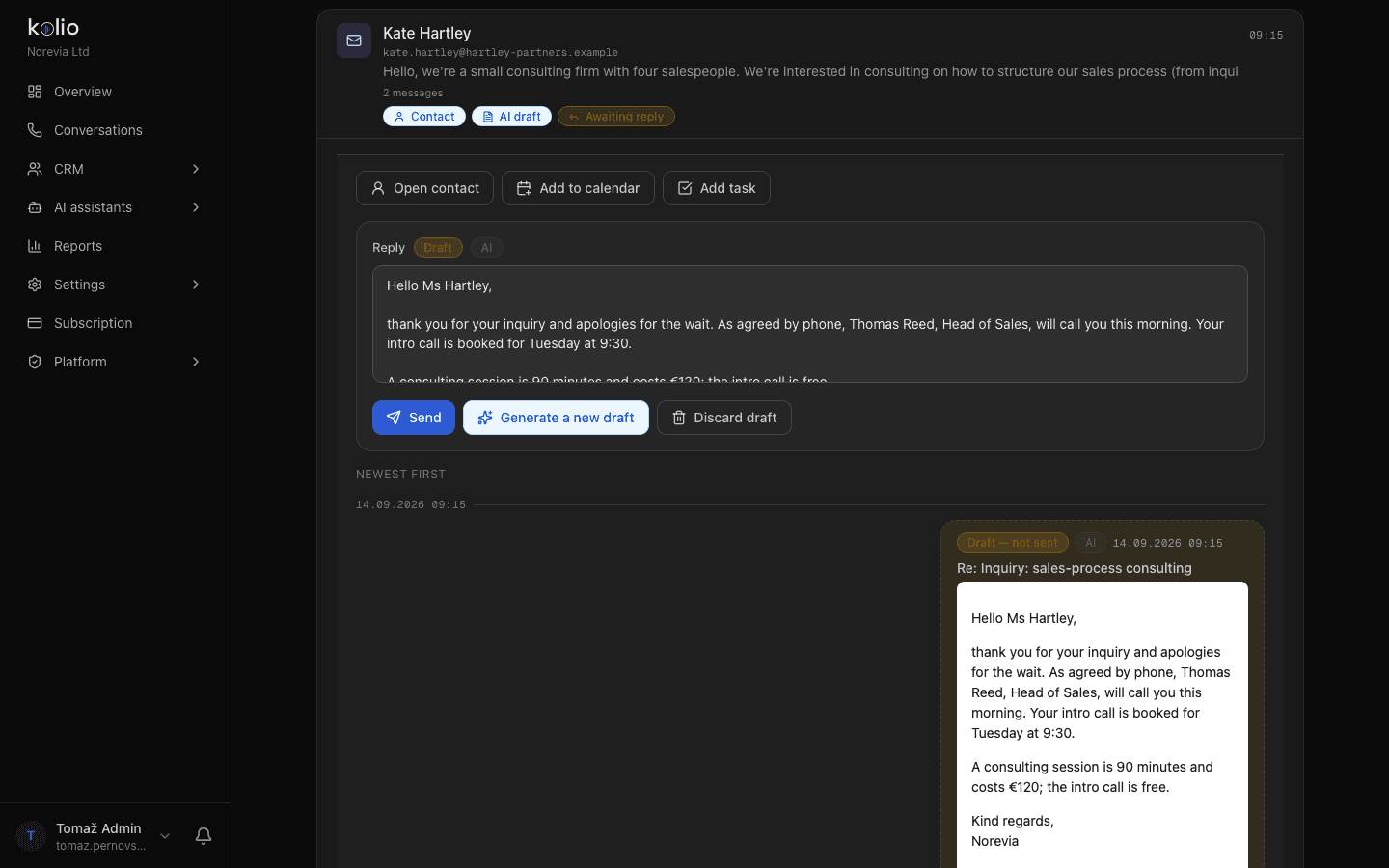
A draft is a reply prepared by the AI that goes nowhere until your team sends it; in Conversations it is marked Draft — not sent, with the buttons Send, Generate a new draft and Discard draft next to it.
Open the thread
In Conversations choose the type Email; threads with a draft carry the AI draft badge, unanswered threads the Awaiting reply badge.
Conversations → Conversation type → EmailReview the text and the proposed actions
Below the draft is the section Actions to be executed on send — for example an appointment booking or a new task that the agent recorded instead of executing in Test mode. You can discard the actions; the draft text stays.
Send or replace
Send sends the reply from your address; if there are proposed actions the button reads Send and execute (n) and runs the actions right before sending. Generate a new draft replaces the existing draft with a new one, Discard draft deletes it.
- For a message without a draft (Off mode or older mail) request one manually with Draft with AI.
- A new message to a customer is written with the Compose message button in the Conversations header; it also goes out over the active path (SMTP or Gmail).
- Signature: every sent message — including an AI draft — gets the signature from My profile → Email signature; without one the message is signed in the company's name.
- History: every sent reply is recorded in the CRM as an outbound message with its mail identity (Message-ID, In-Reply-To), so the thread stays intact even when the copy comes back over IMAP.
- Attachments: you can attach images or PDFs to a reply — up to 10 MB per file, 20 MB and at most 5 files per message; incoming attachments of the same kinds are stored with the message.
Limits and boundaries
The Kolio Email agent works in 5-minute cycles with limits that protect your mailbox and the shared execution window: 25 messages per cycle over IMAP, message text up to 20,000 characters and attachments up to 10 MB per file.
| What | Limit | Note |
|---|---|---|
| Sync frequency | every 5 minutes | The “Refresh” button in Conversations triggers a check immediately. |
| Messages per cycle (IMAP) | 25 | A larger backlog is fetched over several consecutive cycles; nothing is lost or duplicated. |
| Initial fetch | the last 30 days (IMAP and Gmail); over IMAP at most the 200 newest messages | Older history is not imported — Kolio is meant for ongoing conversations, not archives. Fetching 200 messages takes up to 8 cycles (25 per cycle). |
| Folder | Inbox (INBOX) only | Kolio does not read other folders. |
| Message text | 20,000 characters | Longer text is truncated for the CRM and the AI with a “[truncated]” marker; HTML for display up to 200,000 characters. |
| Attachments (member, reply) | 10 MB per file · 20 MB and 5 files per message | Allowed types PNG, JPEG, WebP, GIF, PDF; the type is detected from the contents. |
| Marking as read | never | Kolio reads in read-only mode; mailbox flags are never changed. |
| Concurrency | 5 mailboxes at a time per cycle | An error at one customer does not stop the others. |
- Credit usage: every AI draft (and every automatic reply) counts towards usage as Email draft; track it under Usage (Usage and billing). Bulk mail uses no credits because the AI does not reply to it.
- A message without a Message-ID header (rare, a broken sender) is not protected against duplication the way others are; for it Kolio relies only on the watermark of the last processed message.
- Passwords are stored encrypted in the database (security and privacy) and are never sent to the browser; an empty password field on save means “keep the existing one”.
What to do when the mailbox does not sync?
The first place to look is the Sync status card on the Settings → Email page: it shows the time of the last sync and the text of the last error, and the Test connection button tests IMAP and SMTP separately without saving.
| Symptom | Likely cause | What to do |
|---|---|---|
| “No sync yet.” even after 10 minutes | The mailbox is not enabled, or the Gmail path is active. | Check the Enabled box in the Sync status card and the badge in the page header (which path is In use). |
| Test connection: IMAP fails with a sign-in error | Normal password instead of an app password; IMAP not enabled at the provider. | Create an app password (Gmail: 2-step verification); for Microsoft 365 check that IMAP is allowed; use the full email address as the username. |
| “wrong version number” error or a timeout | Wrong combination of port and encryption. | 993/465 → SSL/TLS; 143/587 → STARTTLS. |
| IMAP works, SMTP does not | SMTP needs a different port/encryption or SMTP AUTH is not allowed. | Try 587 with STARTTLS; for Microsoft 365 have the administrator allow SMTP AUTH for the mailbox. |
| Mail arrives, but the AI produces no drafts | The mode is Off, or the messages are flagged as bulk. | Check the Email agent card; in Conversations switch to All mail and look for the Bulk mail badge. |
| Gmail: sending works, reading does not | The connection lacks Google's Gmail read permission. | Click Allow Gmail reading or Refresh connection and approve access again. |
| A message is in the mailbox but not in Kolio | It is not in the Inbox, or the cycle has not reached it yet (25 per cycle). | Move it to the Inbox or wait for the next cycles; click Refresh in Conversations. |
| The customer replied, but the thread is split in two | The message has no contact, and the contact has a different email address. | Click Add contact on the thread, or add this email address to the contact in the CRM. |