What is Kolio online booking?
Kolio online booking is a public appointment scheduling page hosted at kolio.si/en/book/YOUR_KEY that you add to your website as a link, a frame or a script. The customer picks a service, day and time, enters name, email, phone and a note and consents to data processing; the appointment lands in the same calendar as appointments booked by the AI agent on the phone or in the website chat.
The page shows only free slots: it respects the opening hours of public locations, team member availability and every appointment already booked, whatever its source. It works in English and Slovenian — the Slovenian version is at /narocanje/YOUR_KEY or with the ?lang=sl parameter.
- Where to set it up: Settings → Online booking — switch, page text, confirmation mode and embed codes.
- What it needs: at least one service marked as publicly bookable and availability set up (Calendar and services).
- Where the appointment goes: to the Calendar with the source Online booking; the customer's contact with consent to the CRM.
How do you switch on online booking?
You switch online booking on in Settings → Online booking; until the switch is on, the public page shows a notice that booking is not available, even if the code is already embedded on your site.
Open the settings
In the menu choose Settings → Online booking. Members with the
Settings → Online bookingnastavitve(settings) permission see the page.Switch on the public page
Turn on the switch for the public page. On the first save Kolio creates the page's public key and shows the link and the embed codes.
Enter the headline and intro
Enter the Headline and Intro the customer sees above the form — in Slovenian and, if you will offer the page in English too, in English. Without English text the Slovenian text is shown.
Choose phone and confirmation mode
Decide whether the phone is required and whether appointments are confirmed automatically or by your team (the appointment waits as
unconfirmed).Save and test
Click Save, open the page link and make a test booking; then cancel the appointment in the calendar.
| Setting | Options | Default | What it determines |
|---|---|---|---|
| Switch | on · off | off | Whether the public page is reachable. A page that is off accepts no bookings. |
| Headline and intro (SL / EN) | text | empty | The text above the form; the English version is shown on the English page. |
| Phone required | yes · no | yes | Whether the customer must enter a phone number. |
| Automatic confirmation | yes · no | yes | Yes: the appointment is confirmed at once. No: it waits as “unconfirmed” until your team confirms it. |
| Public key | automatic | — | Part of the page address and the embed codes; gives no access to your data. |
The page's logo and colour come from the account settings; the confirmation and reminder text from the templates.
Which services and slots appear on the page?
The booking page lists only services marked as publicly bookable in Calendar → Services; internal services (e.g. “internal meeting”) stay hidden. The location's opening hours, the availability of the service's staff and the service duration determine which times the page offers.
- Locations: the page offers only public locations (checkboxes in Settings → Online booking → Locations online); with several locations the customer picks one first, with a single location it is shown in the summary and confirmation.
- Location opening hours and staff: free slots are the intersection of the location's opening hours, closures and the availability of members who perform the service at that location; a service without staff has no slots.
- Existing appointments: a time that is already taken — from a call, chat, the web, internally or via API — is not shown.
- English name and description: the Name (EN) and Description (EN) fields on the service and location; without them the English page shows the Slovenian name.
How do you embed online booking on your site?
You embed online booking in three ways; all three codes are in Settings → Online booking and work without a plugin on any system that lets you add a link or HTML code.
1 · Link to the hosted page
https://kolio.si/en/book/YOUR_KEY
https://kolio.si/narocanje/YOUR_KEY2 · Frame (iframe) on your subpage
<iframe src="https://kolio.si/embed/narocanje/YOUR_KEY?lang=en"
title="Online booking" style="width:100%;min-height:720px;border:0"></iframe>3 · The kolio-booking.js script
<!-- floating button that opens the form in a modal -->
<script src="https://kolio.si/kolio-booking.js" data-key="YOUR_KEY" data-mode="button" data-lang="en" data-label="Book now" defer></script>

<!-- form embedded where the tag stands -->
<script src="https://kolio.si/kolio-booking.js" data-key="YOUR_KEY" data-mode="inline" defer></script>| Method | When to choose it | Change to the site's code |
|---|---|---|
| Link | A “Book now” button, email signature, Google Business profile, social media. | None. |
| Frame (iframe) | Your own “Booking” subpage on your domain. | One iframe tag. |
| Script | A button on every page (button) or the form in a specific section (inline). | One script tag. |
What does the customer receive after booking?
After booking, the customer receives an email from the booking_confirm template with the service, time, your details and a link on which they can reschedule or cancel the appointment themselves; the day before the appointment they receive a reminder. If your mailbox is set up (Email), both messages go out from your address.
- Automatic confirmation: the appointment is confirmed at once and the confirmation goes to the customer the moment they book.
- Team confirmation: the appointment is marked
unconfirmed(amber) in the calendar; when your team confirms it, the customer receives the confirmation. - Reschedule and cancel: the link in the confirmation opens a page where the customer picks another free slot or cancels; the change is visible in the calendar immediately.
- Text: edit the
booking_confirmtemplate and the reminder in Settings → Templates.
How does the calendar tell appointment sources apart?
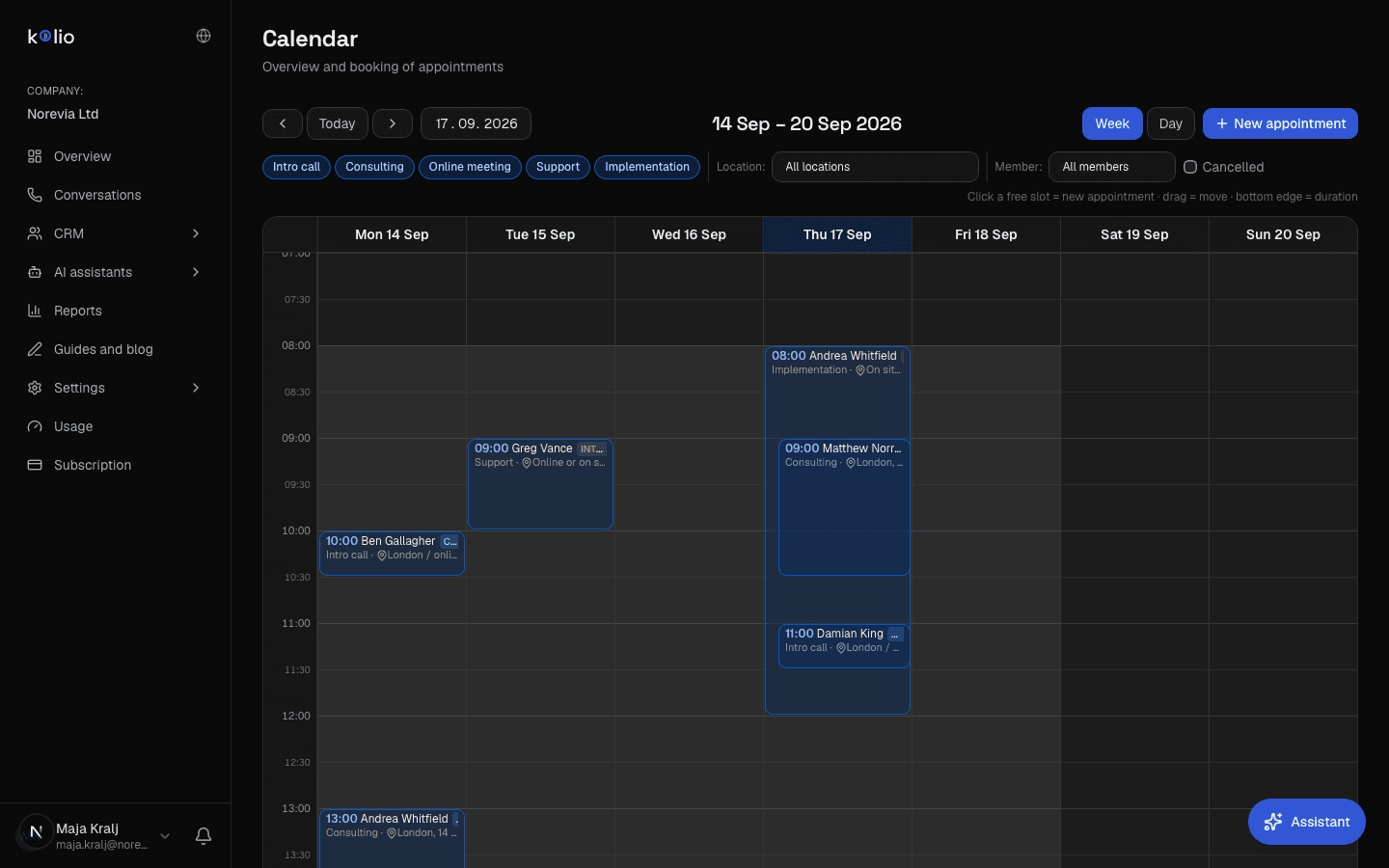
The Kolio calendar marks every appointment with its source so your team sees where it came from: Call (AI agent on the phone), Website chat, Online booking (public page), Internal (entered by the team) and API (integration or MCP). All sources share the same staff, so double bookings are not possible.
| Source | Who creates the appointment | Confirmation to the customer |
|---|---|---|
| Call | AI agent during a phone conversation | email, if the agent got an address |
| Website chat | AI agent in the chat on your site | email, if the agent got an address |
| Online booking | The customer on the public page | email always (the address is required) |
| Internal | Your team in the calendar | as chosen in the appointment dialog |
| API | An integration or MCP client | as chosen by the integration |
How is the public page protected against abuse?
The public form is reachable by anyone, so Kolio checks every booking before writing it to the calendar. The protection works automatically and needs no configuration.
- Hidden field (honeypot): a field the visitor never sees but bots fill in — such a booking is rejected.
- Limit per IP address and email: too many attempts in a short time from the same address or with the same email are paused by Kolio (the form asks the visitor to try again later).
- Slot re-check: at save time Kolio re-checks opening hours, availability and existing appointments; if the slot was taken in the meantime, the customer picks another.
- Consent: without confirmed data processing no booking is possible; the consent is recorded on the contact in the CRM.